SmartServer IoT
Overview
The EnOcean SmartServer IoT is an edge controller providing connectivity for EnOcean radio devices and integration with Building Management Systems (BMS) and HVAC systems via BACnet, Modbus, and LON protocols. Installed on-premises, the SmartServer IoT enables secure connections between Operational Technology (OT) systems, IT systems, and the EnOcean SmartStudio platform.
The following describes how to configure the SmartServer IoT to pull data from SmartStudio and integrate it into Building Management Systems (BMS) and HVAC systems. How to configure the SmartServer IoT as a gateway for connecting EnOcean radio devices with SmartStudio is described here.
Prerequisites
Before deployment, ensure the following prerequisites are met:
- The SmartServer is mounted and powered up.
- The SmartServer is connected to the internet.
- The SmartServer BACnet driver is enabled.
Note
Refer to the links below for the detailed steps on completing the prerequisites.
Set up SmartServer IoT
Setting up BACnet server on SmartServer IoT
Configuration
Step 1: Retrieve SmartStudio Connection Information
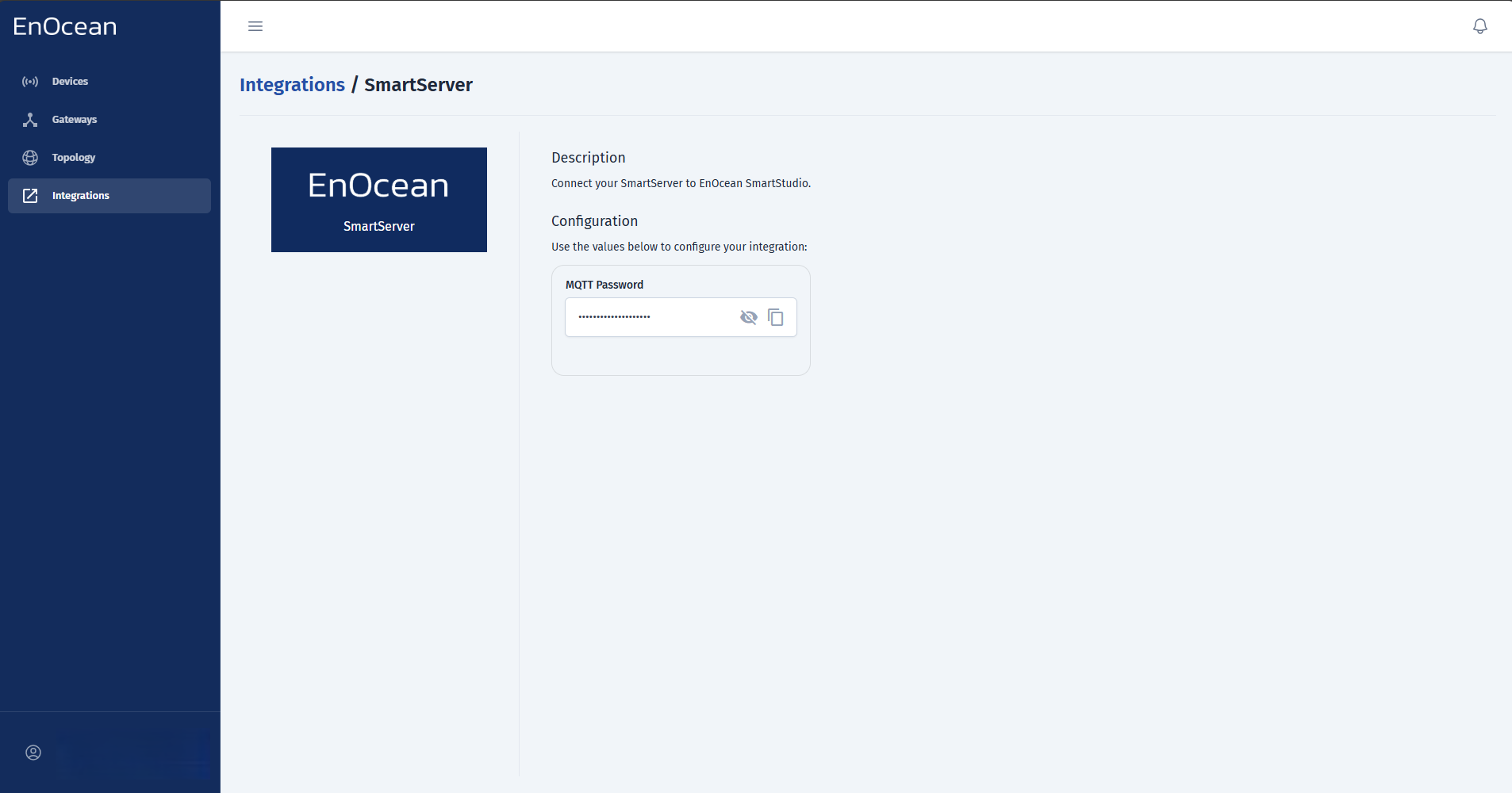
- Retrieve the MQTT Password from SmartStudio:
- Go to the Integrations section.
- Select SmartServer.
- Copy the information:
- Go to the Integrations section.
Step 2: Log in to the SmartServer configuration page
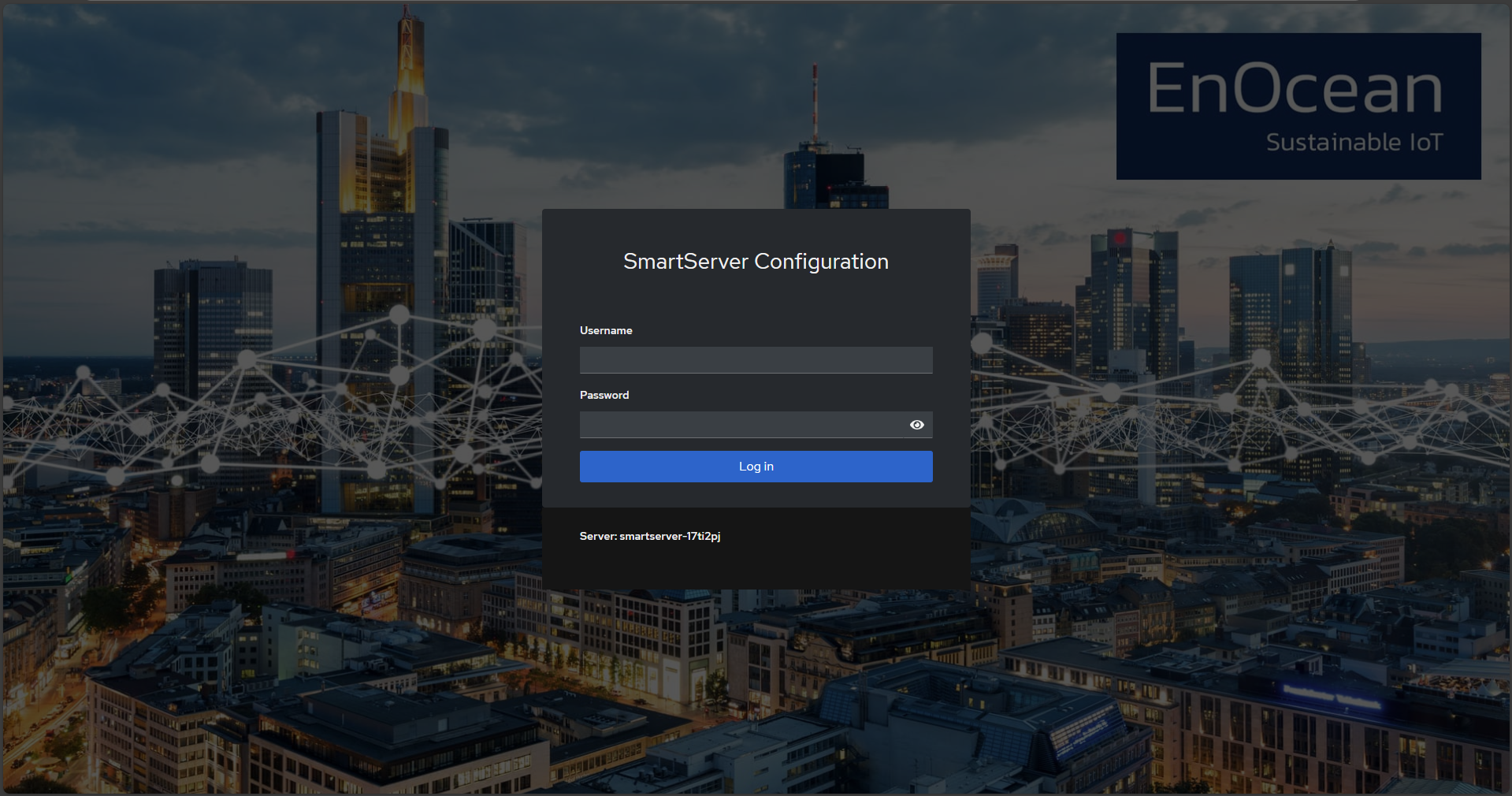
- Open a web browser and navigate to the SmartServer's configuration page.
-
Log in using your apollo user credentials.
Step 3: Navigate to the EnOcean Tab
-
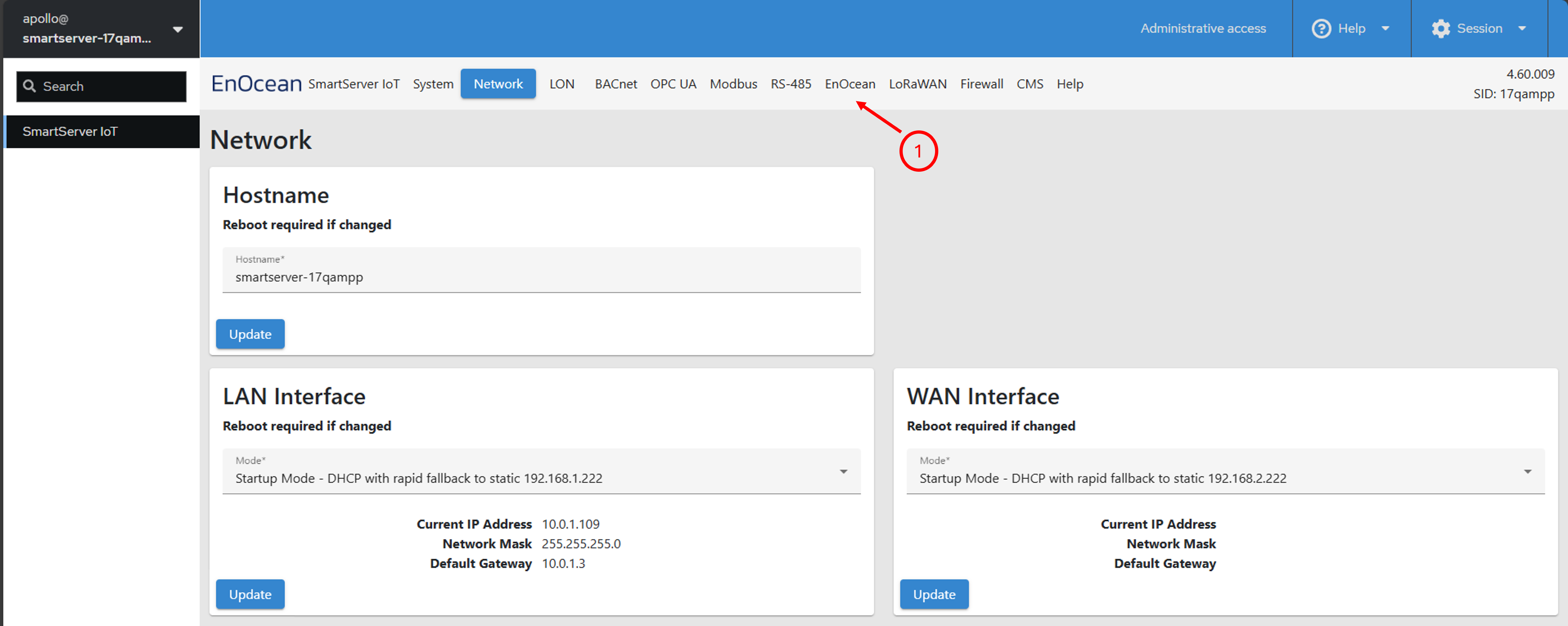
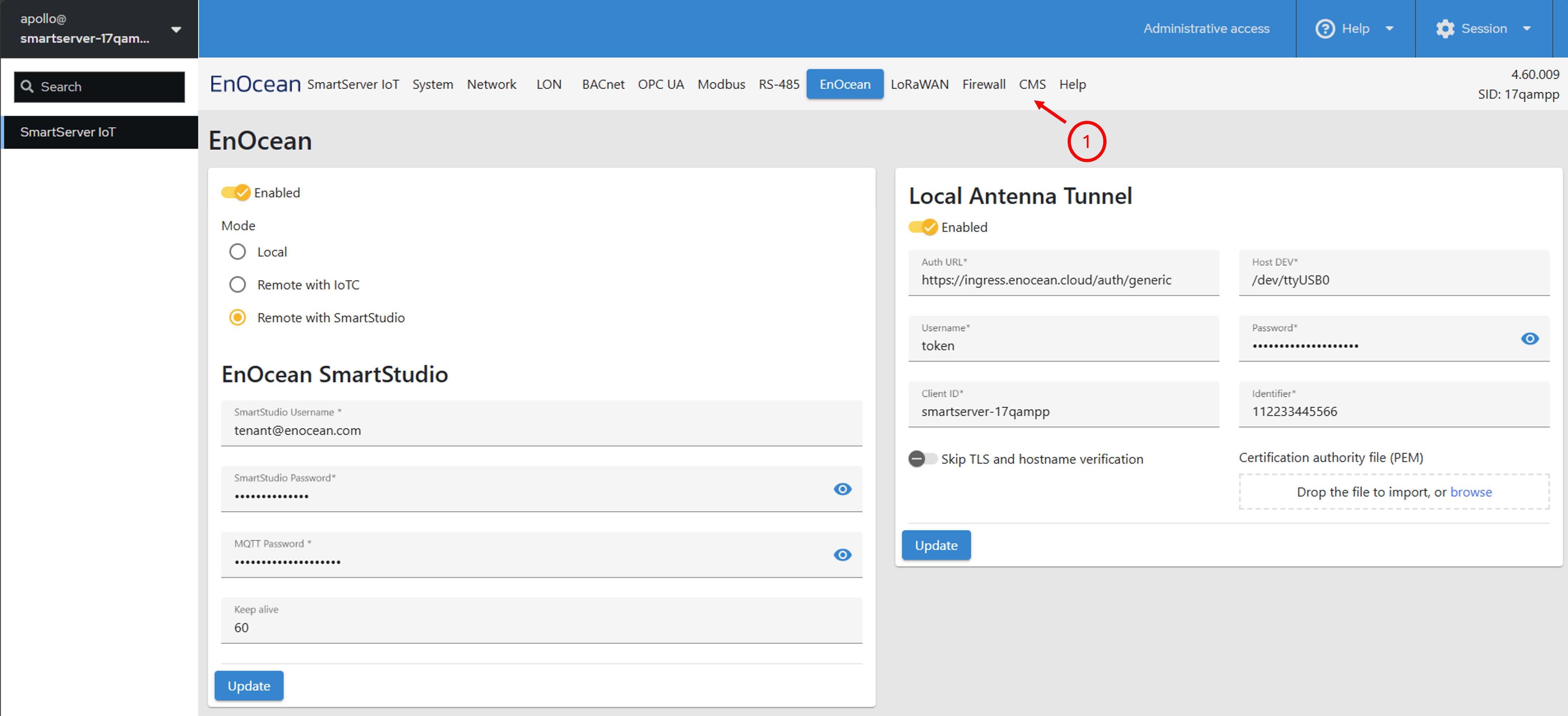
Once logged in, go to the EnOcean tab in the SmartServer configuration page.
Step 4: Configure the SmartStudio Connection
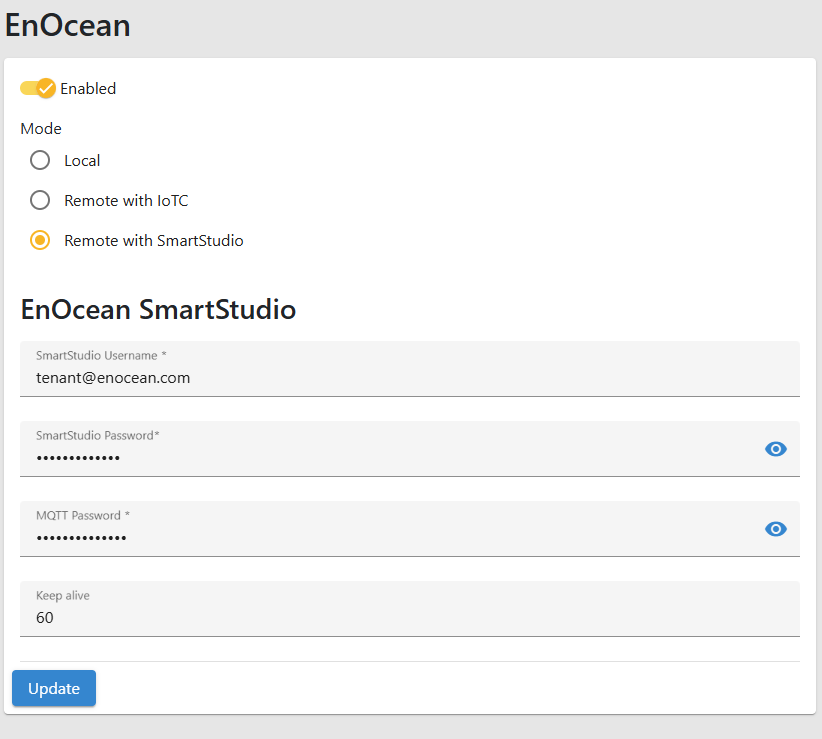
- Select the Remote With SmartStudio mode.
- In the Enocean SmartStudio section, enter the information retrieved from SmartStudio above.
-
Click Update to enable remote mode with SmartStudio on your SmartServer IoT.
Step 5: Downloading EnOcean Device Interface (XIF) and Device Type Definitions
-
Log in to SmartServer CMS:
-
Visit the SmartServer GitHub repository.
- Navigate to the appropriate region folder based on your deployment:
EU/Remotefor European regionUS/Remotefor United States regionJP/Remotefor Japanese region
- Download the required .dtp (Device Type Package) and .btm (BACnet Type Mapping) files from the selected region remote folder.
-
Import the downloaded files in the step above using the Import / Export button on the SmartServer app bar.
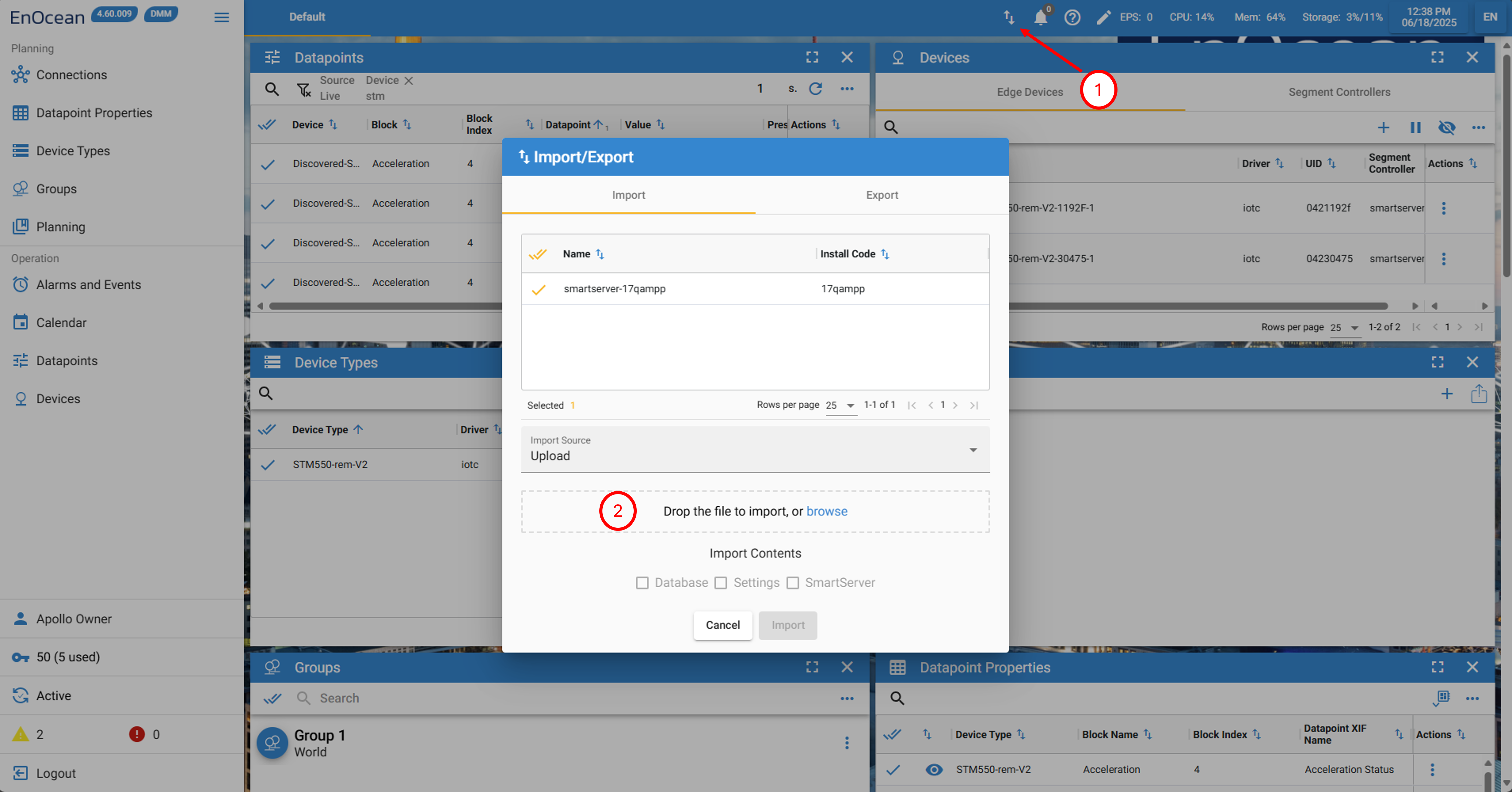
Once the EnOcean XIF and device type definitions are loaded, the device type definitions will appear in the Device Types widget.
Step 6: Adding Remote EnOcean Devices
Once you have enabled remote mode and imported EnOcean device types, you can discover the EnOcean devices following below:
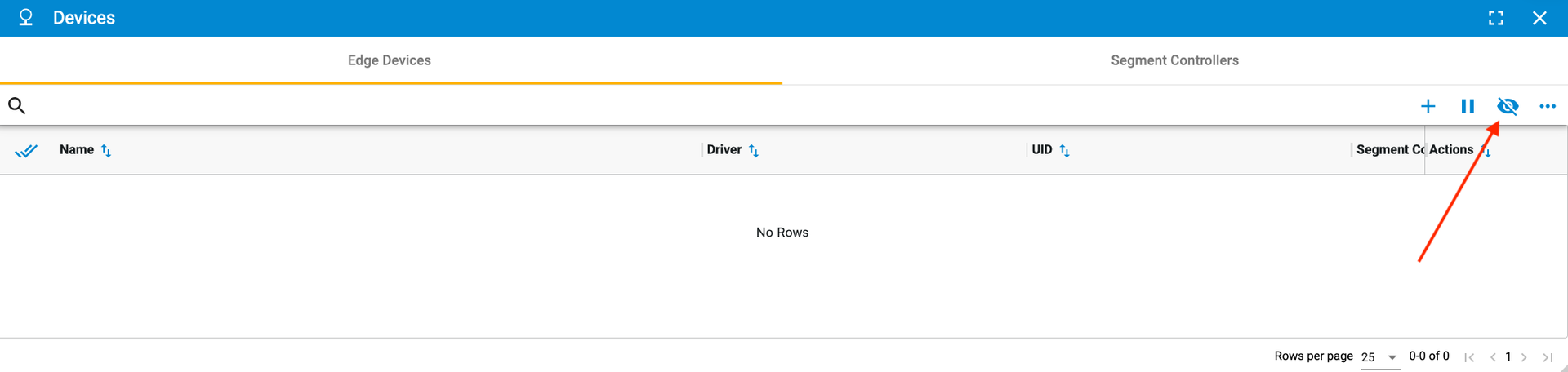
- Open the devices widget.
- Click the Discover button.
-
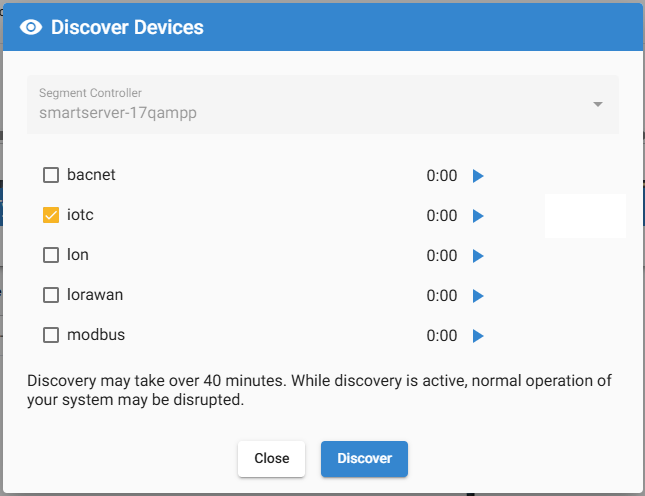
The Discover Devices dialog box appears as shown in the example below. Deselect all the options and keep only the iotc driver then click discover.
Note
If you are using SmartSupervisor, then select the SmartServer where you want to initiate device discovery from the Segment Controller dropdown menu in the Discover Devices widget.
Step 7: Discover EnOcean Devices from a BACnet workstation
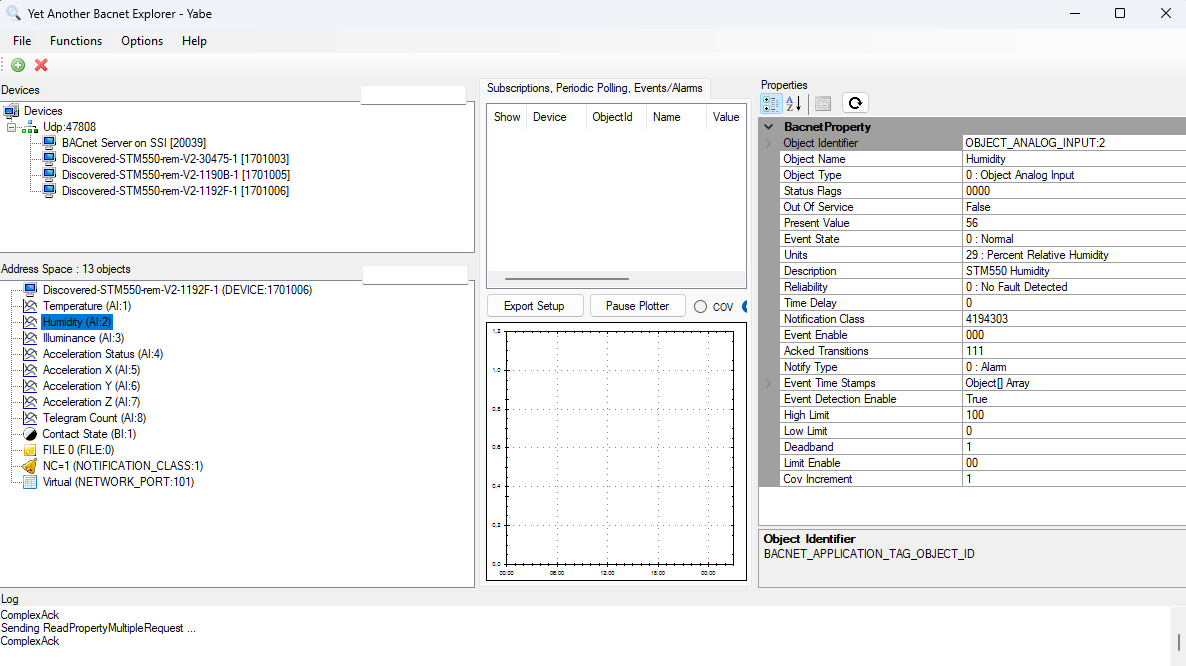
You can view and interact with the EnOcean devices connected to your SmartStudio account using a BACnet client. The following is an example of this using Yabe:
- Launch Yabe.
- Click Add device (Search).
- Under BACnet/IP, set the Local endpoint to your computer’s IP address and use port
BAC0. Click Start. - In the top menu, navigate to Functions → IP Services → Foreign Device Registration.
-
Enter the following details:
- Remote IPv4 address: Set this to your SmartServer’s IP address for the
eth0network interface. - Port: If you are using a BACnet MS/TP Router with your SmartServer IoT on the LAN port, the port number can be found under the BACnet tab in the SmartServer configuration UI. The default port is
47809(labeled asBAC1by default).
6. Click Register.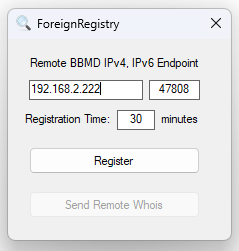
- Remote IPv4 address: Set this to your SmartServer’s IP address for the
Once registered, all SmartServer devices and any SmartStudio devices for which .btm files have been imported will appear in Yabe under BACnet devices, allowing you to browse and interact with them.