Aruba APs Debugging & Troubleshooting
In case the Aruba AP is not connected to EnOcean SmartStudio i.e. the device is not listed in the gateway list or no EnOcean telegrams are visible on the egress of EnOcean SmartStudio. Try the following steps.
This guide is divided into two sections:
- Section 1: Debugging the IoT Transport Profile deployed on the gateway (AP or Controller).
- Section 2: Debugging the EnOcean SmartStudio App deployed from Aruba Central, including log retrieval.
1. Debugging the IoT Transport Profile on the Gateway
Note: Command syntax may change with Aruba OS releases. Tested with Aruba OS 8.10.x.
1.1 Show IoT Configuration
powershell
aa:bb:cc:dd:ee:ff # show iot transportProfile myProfile
1.2 Show & Check Connected USB Devices
```powershell
aa cc:dd:ee:ff # show usb devices
USB Device Info
---------------
DeviceID  APMac Vendor ID  Product ID  Manufacturer  Product             Version  Serial    Class  Device   Driver    Uptime
--------  ---------------  ----------  ------------  -------             -------  -------   -----  ------   ------    ------
d3adas..  aa:.. 0403       6001        EnOcean GmbH  EnOcean USB 300 DC  2.00     FT55W4A9  tty    ttyUSB0  ftdi_sio  24m34s
```
Ensure an EnOcean USB device is connected.
1.3 Check IoT Configuration Status
```powershell
aacc:dd:ee:ff # show ap debug ble-relay iot-profile
ConfigID                                : xx

---------------------------Profile[myProfile]---------------------------

authenticationURL                       : ...
serverURL                               : ...
...
--------------------------
TransportContext                        : Connection Established
Last Data Update                        : 2021-06-14 15:01:20
Last Send Time                          : 2021-06-14 15:01:19
TransType                               : Websocket
```
Look for TransportContext: Connection Established.
1.4 Check EnOcean Telegram Forwarding
```powershell
aacc:dd:ee:ff # show ap debug ble-relay report
---------------------------Profile[myProfile]---------------------------

WebSocket Connect Status                : Connection Established
WebSocket Connection Established        : Yes
Handshake Address                       : ...
Refresh Token                           : Not Configured
Access Token                            : ...
Access Token Request by Client at       : 2021-06-14 14:18:32
Access Token Expire at                  : 2021-06-14 15:18:32
Location Id                             : ...
Websocket Address                       : ...
WebSocket Host                          : ...
WebSocket Path                          : ...
Vlan Interface                          : Not Configured
Current WebSocket Started at            : 2021-06-14 14:18:42
Web Proxy                               : NA
Proxy Username&password                 : NA, NA
Last Send Time                          : 2021-06-14 14:30:35
Websocket Write Stats                   : 8278 (1454156B)
Websocket Write WM                      : 0B (0)
Websocket Read Stats                    : 0 (0B)
```
Monitor Websocket Write Stats and Last Send Time for activity.
1.5 Retrieve Additional Logs
powershell
aa:bb:cc:dd:ee:ff # show ap debug ble-relay ws-log myProfile
For Enterprise APs (Controller-managed):
```powershell
Show profiles
show iot transportProfile myProfile
Show USB devices
show ap usb-device-mgmt all
Show status and report
show ble_relay iot-profile
show ble_relay report
Show Log
show ble_relay ws-log
2. Debugging the EnOcean SmartStudio App from Aruba Central
If you have deployed the EnOcean SmartStudio app via Aruba Central, you can retrieve and analyze logs directly from Central for deeper troubleshooting.
2.1 Accessing App Logs in Aruba Central
- Log in to Aruba Central and navigate to your group or site.
- Go to Applications -> IoT Operations and select Manage Under IoT Applications.
- Find the EnOcean SmartStudio app and click on it.
- Under the App Status across Connectors click on the number displaying the number of apps deployed then click on go to app details
- Look for a Logs tab within the app details.
- Download or view the latest logs.
Logs typically include connection attempts, errors, and data transmission details.
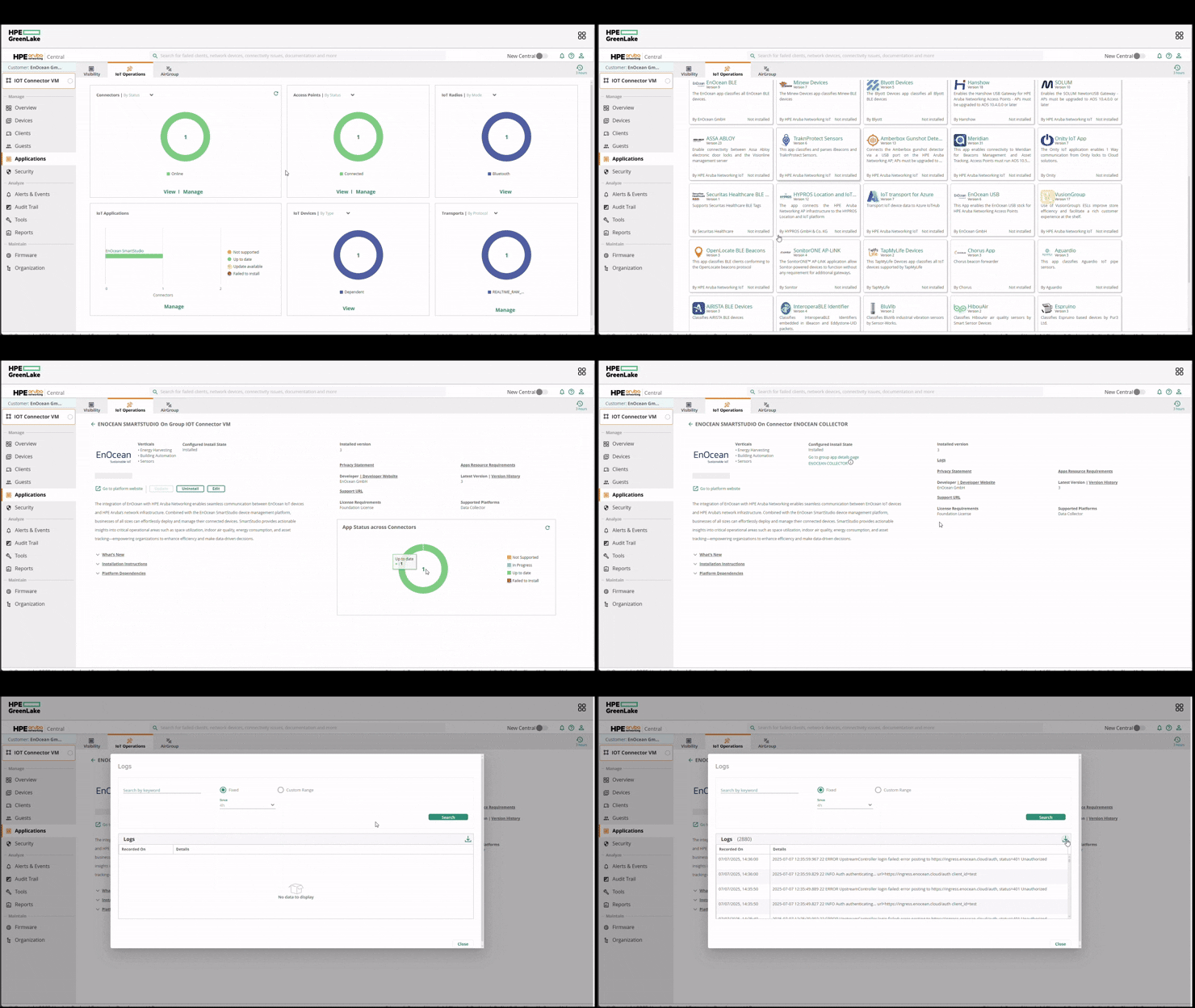
2.2 Navigating Logs
- Search for keywords such as
error,connection, orEnOcean. - Check timestamps to correlate with observed issues.
- Review any warnings or failures related to WebSocket connections or USB device detection.
If you continue to experience issues, contact EnOcean technical support and provide the relevant logs from both the gateway and Aruba Central.