Configuration using Aruba Central
Aruba Central
Aruba Central is a cloud-based platform that provides unified management and control over a network of Aruba Access Points (APs), ensuring seamless, secure, and scalable connectivity. Designed for scalability and ease of use, Aruba Central allows IT teams to manage multiple locations and thousands of devices from a single interface.
Step 1: Connect to Aruba Central
Log into the web-based management page for Aruba Central.
Step 2: Installing Trusted CA Certificates
Note
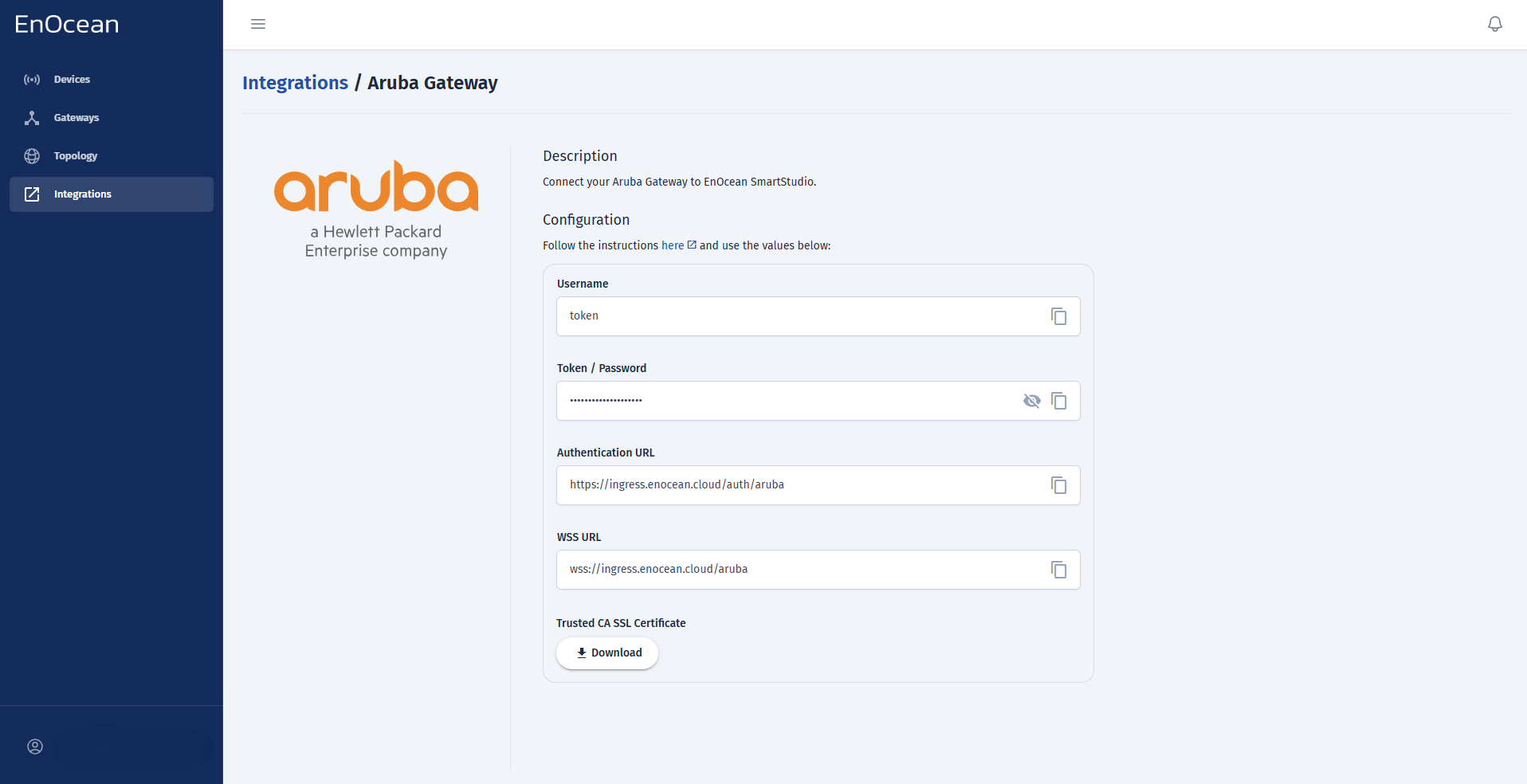
The Username, Password, Authentication URL, WSS URL and the Trusted CA Certificate can be obtained from SmartStudio -> Integrations section -> Aruba Gateway like shown below. It is also recommended to generate a random 10-character string to use as your client ID.
-
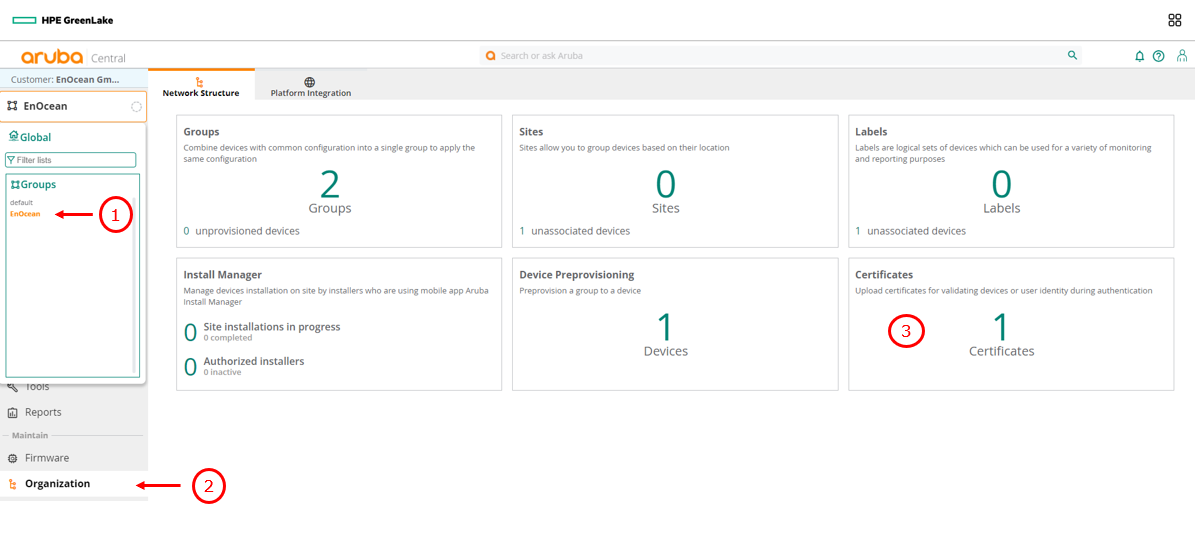
Upload your .pem certificate file From Your group -> Organization -> Certificates.
-
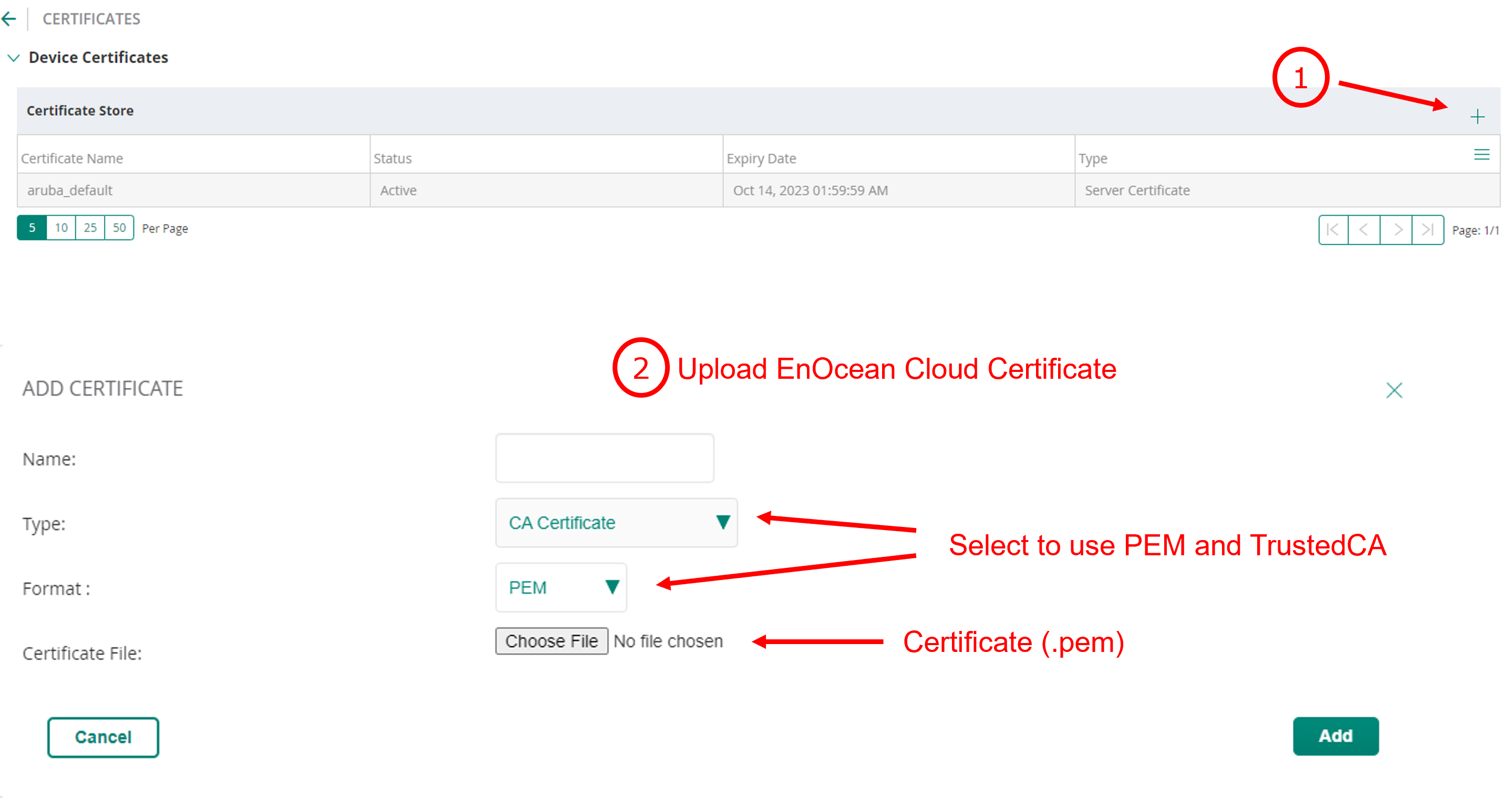
Select CA certificate as certificate type and PEM as Certificate format then choose your certificate .pem file.
-
Click Add to save your settings.
-
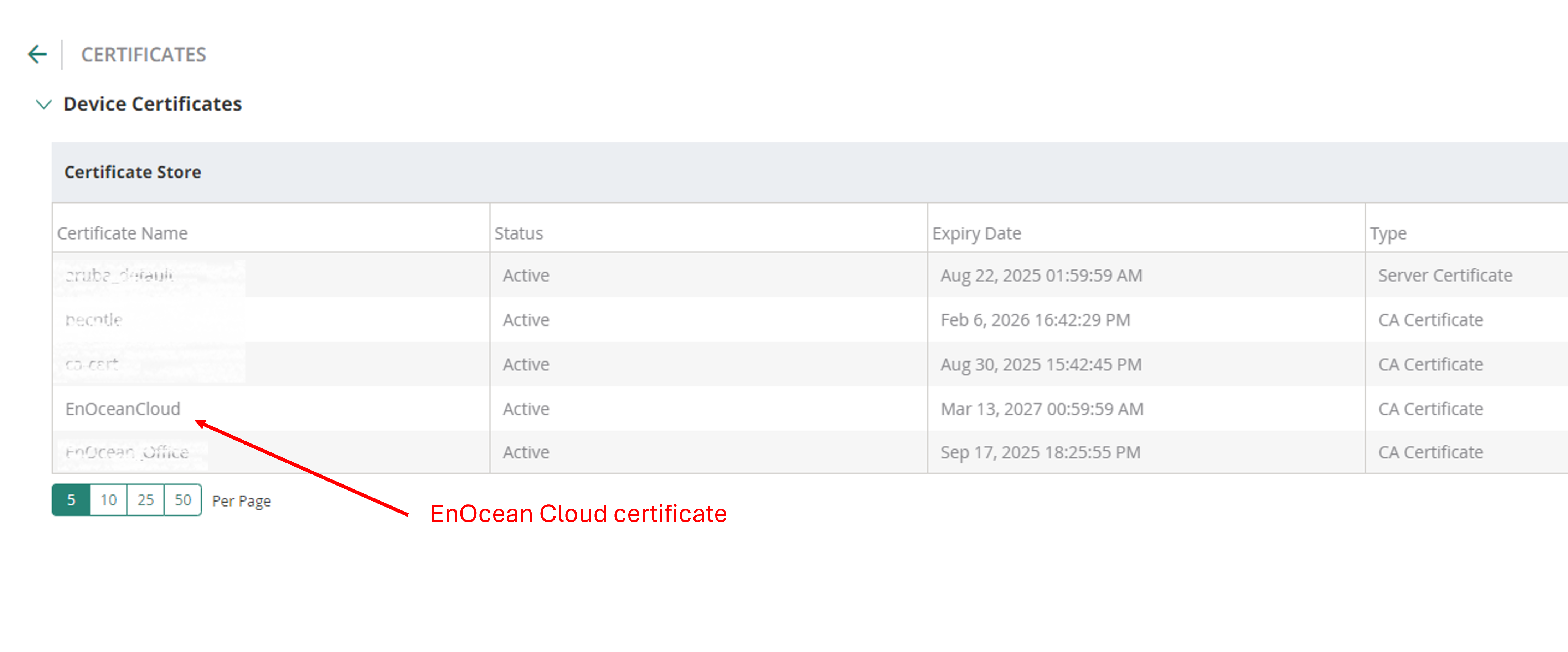
Verify the certificate is shown on the certificate list.
Step 3: IoT transport configuration
-
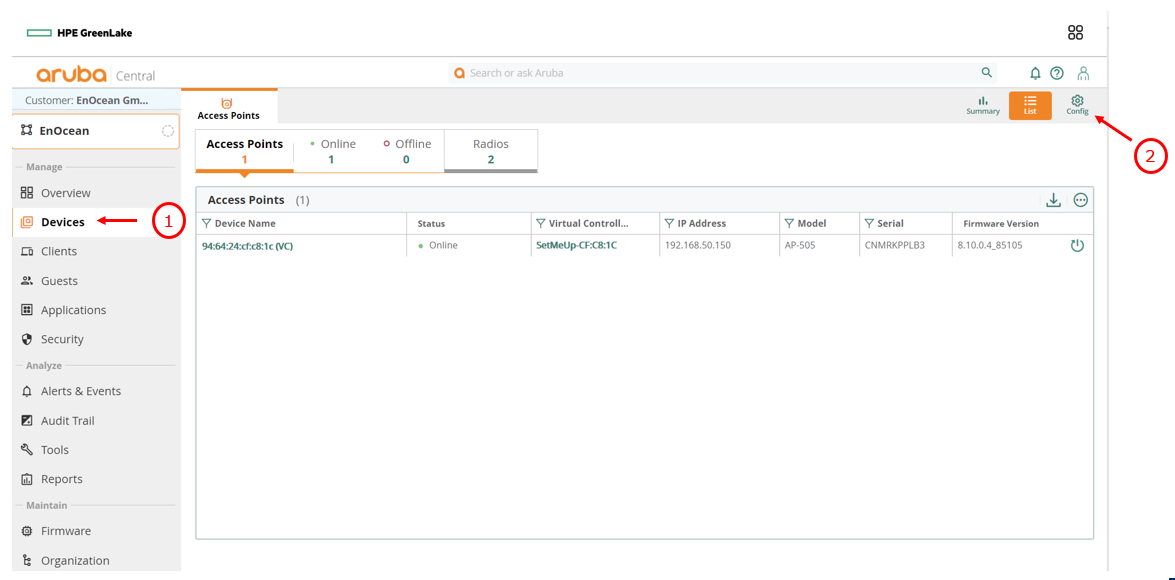
In your Aruba Central group select Devices -> Config:
-
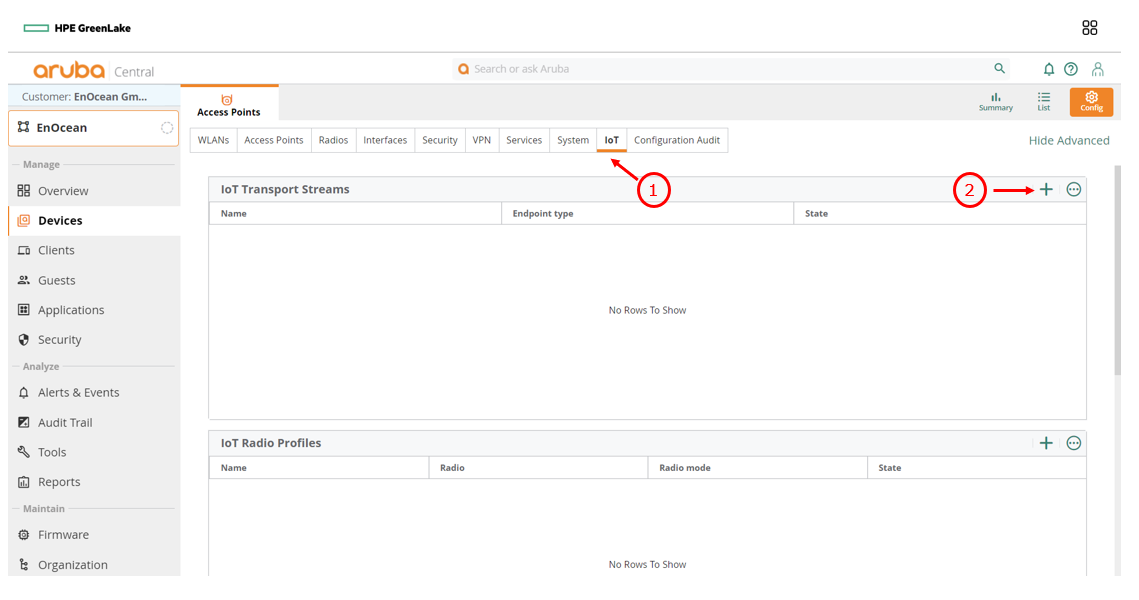
select IoT then add a new IoT transport stream using the + icon:
-
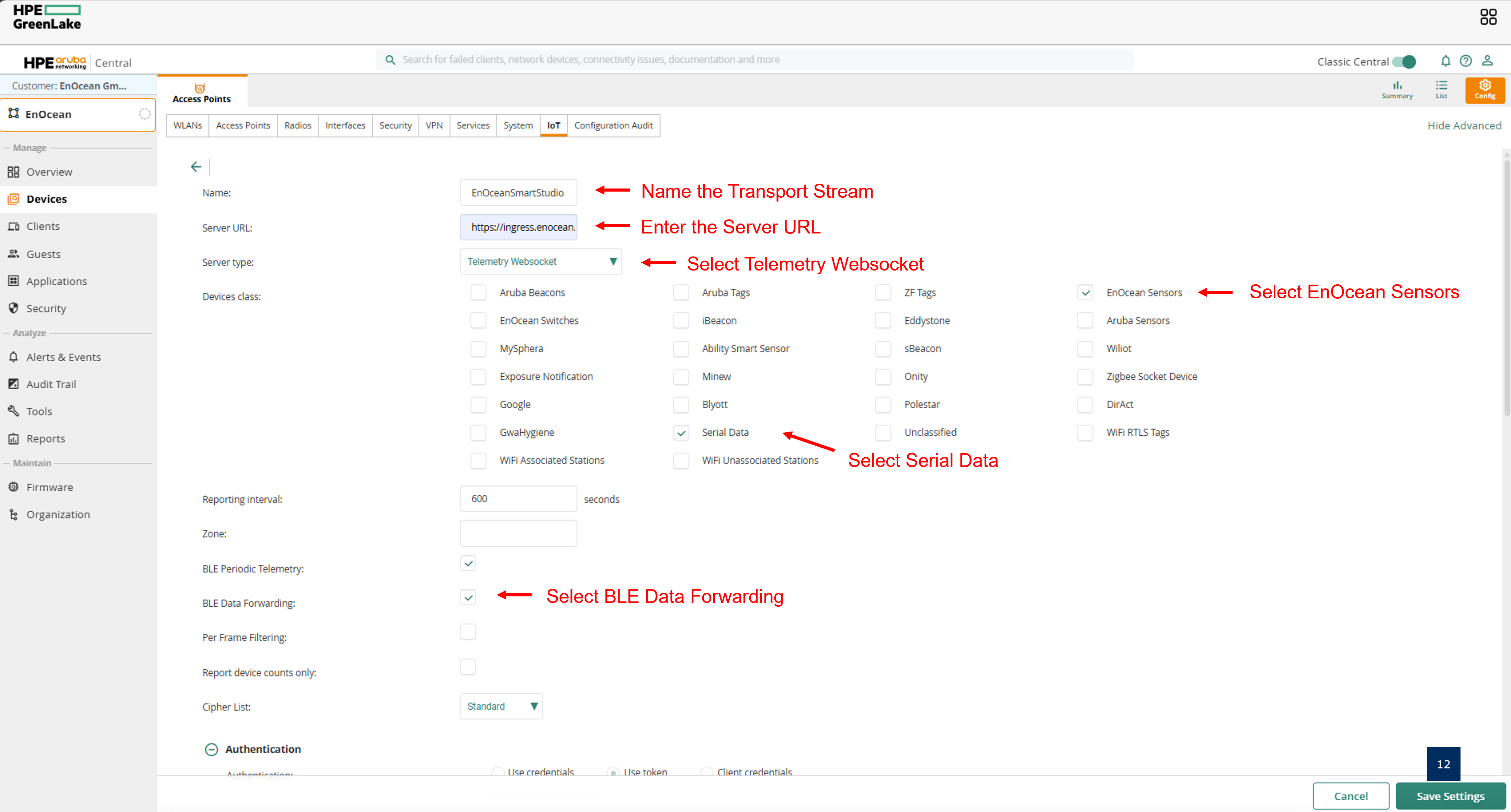
Enter the following information in the IoT transport tab:
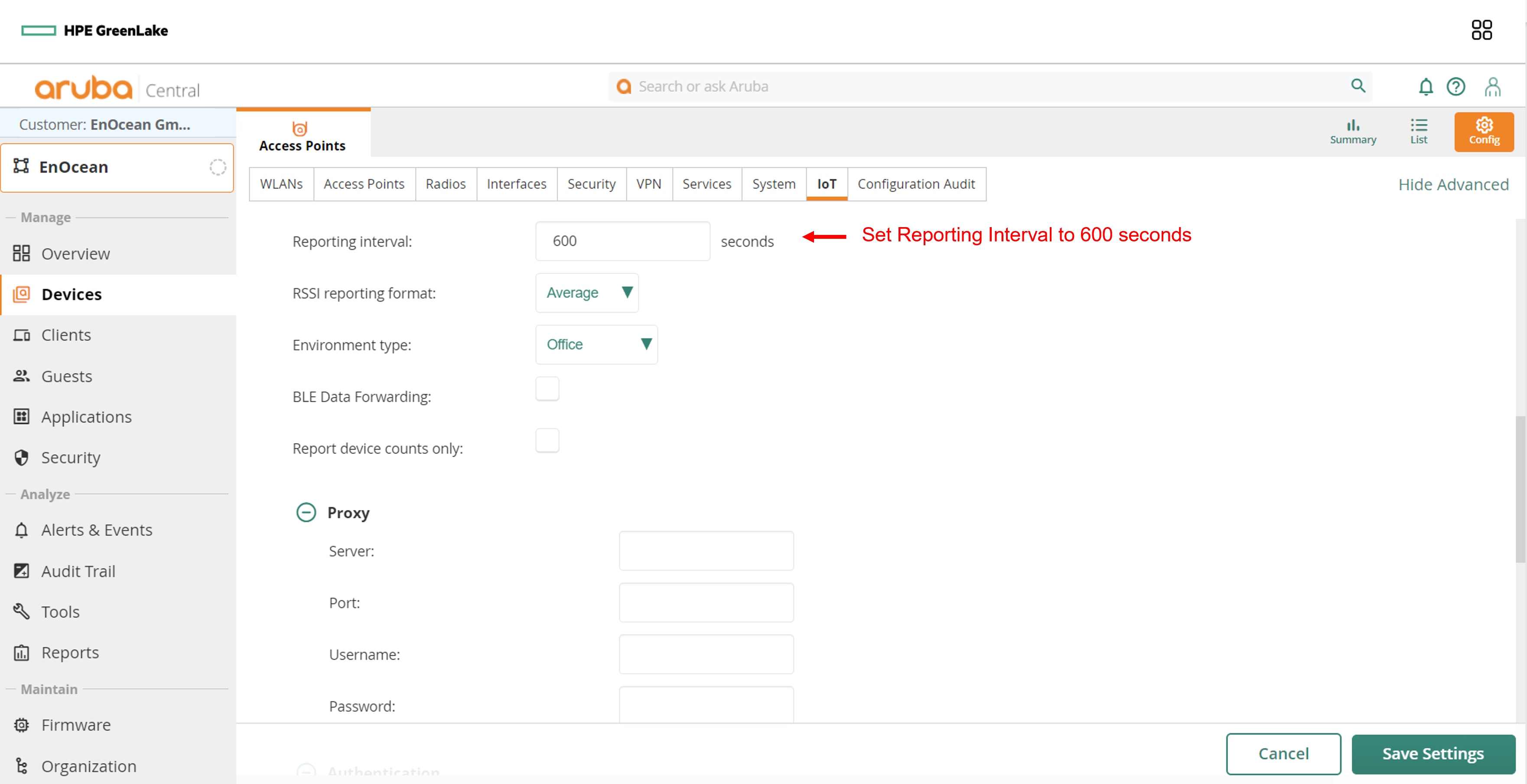
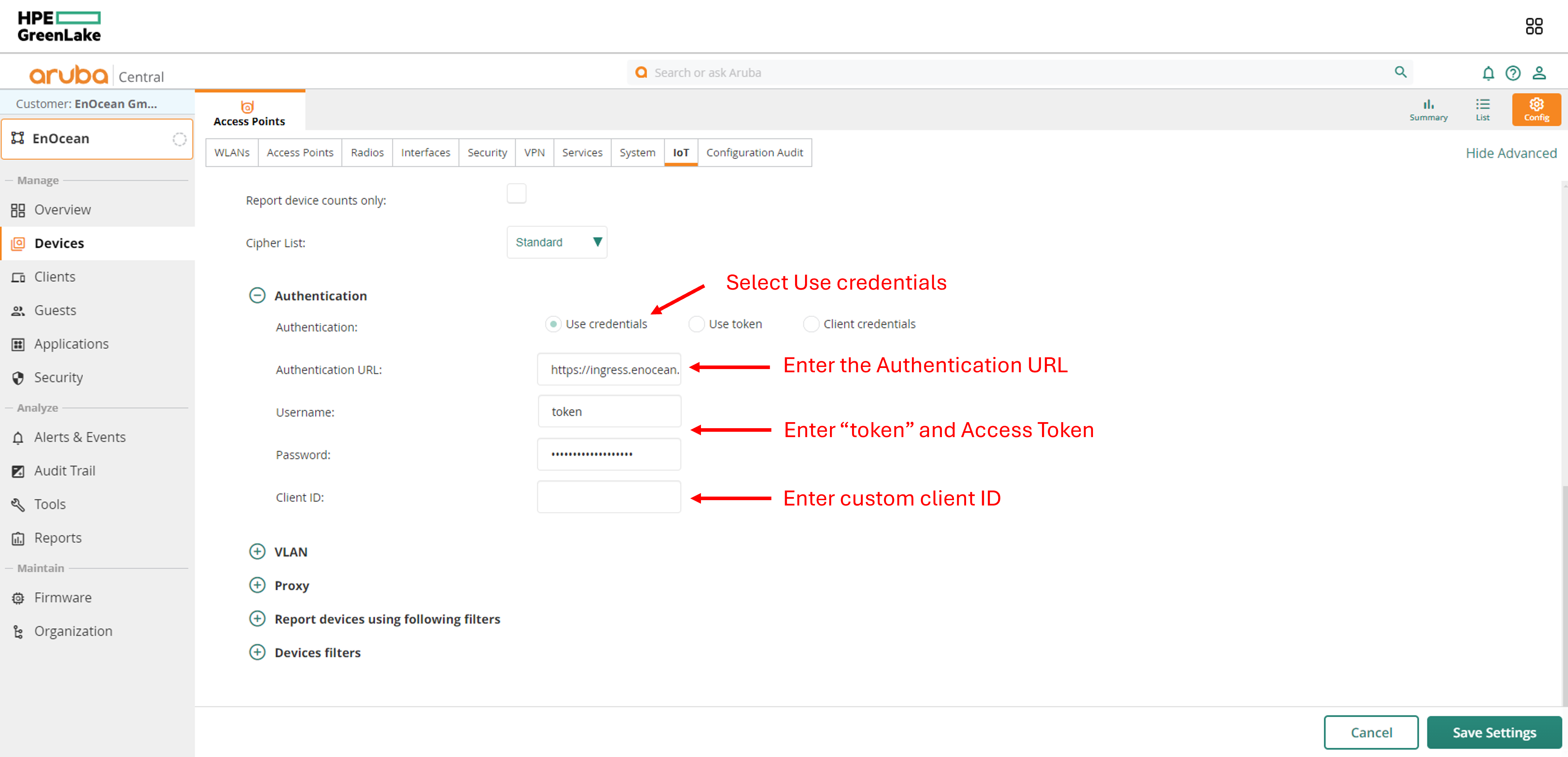
Click Save settings to save you configuration.
-
Check that you transport stream is enabled:

Step 4: Activating the certificate
-
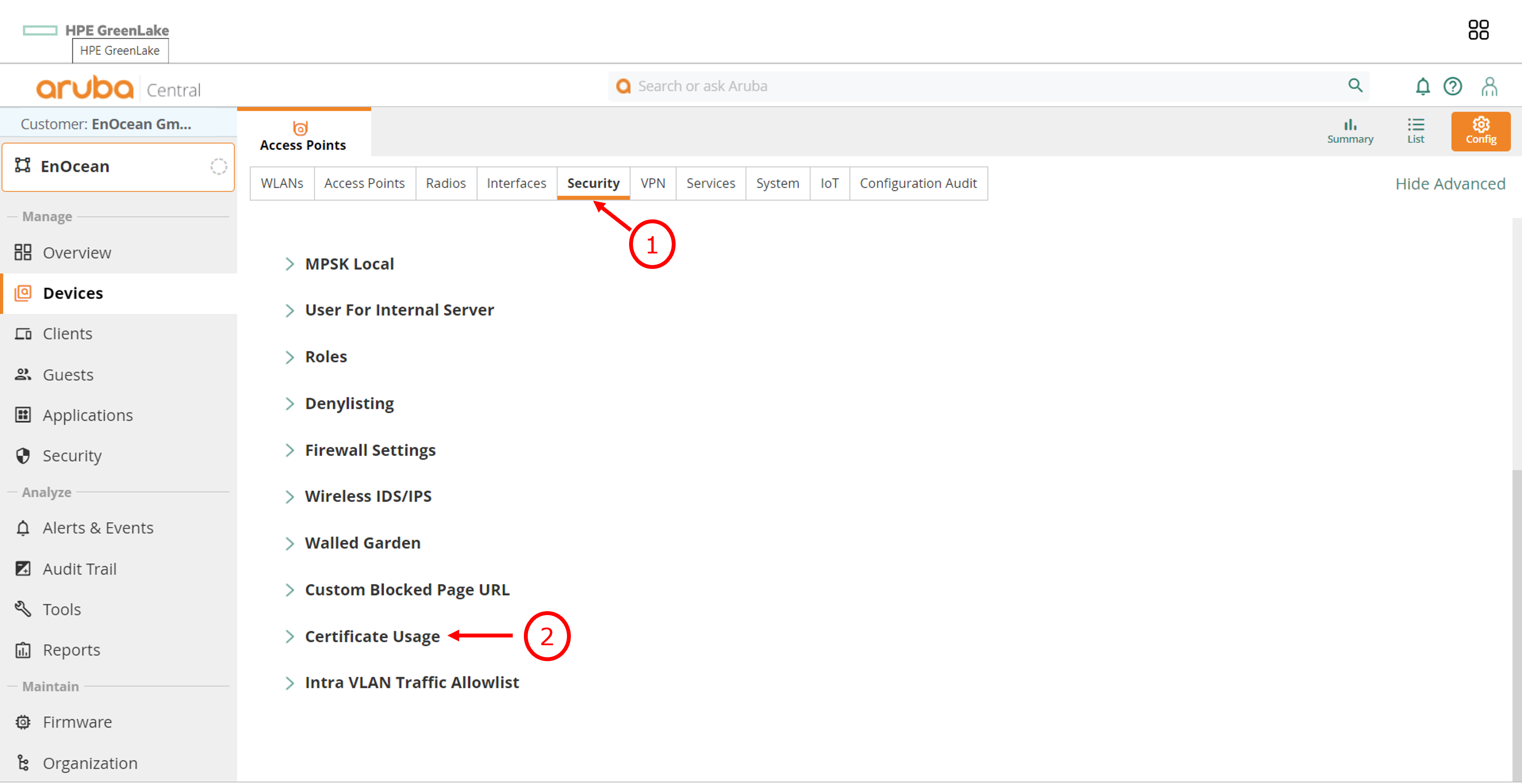
Under Access Points click Security then Certificate Usage.
-
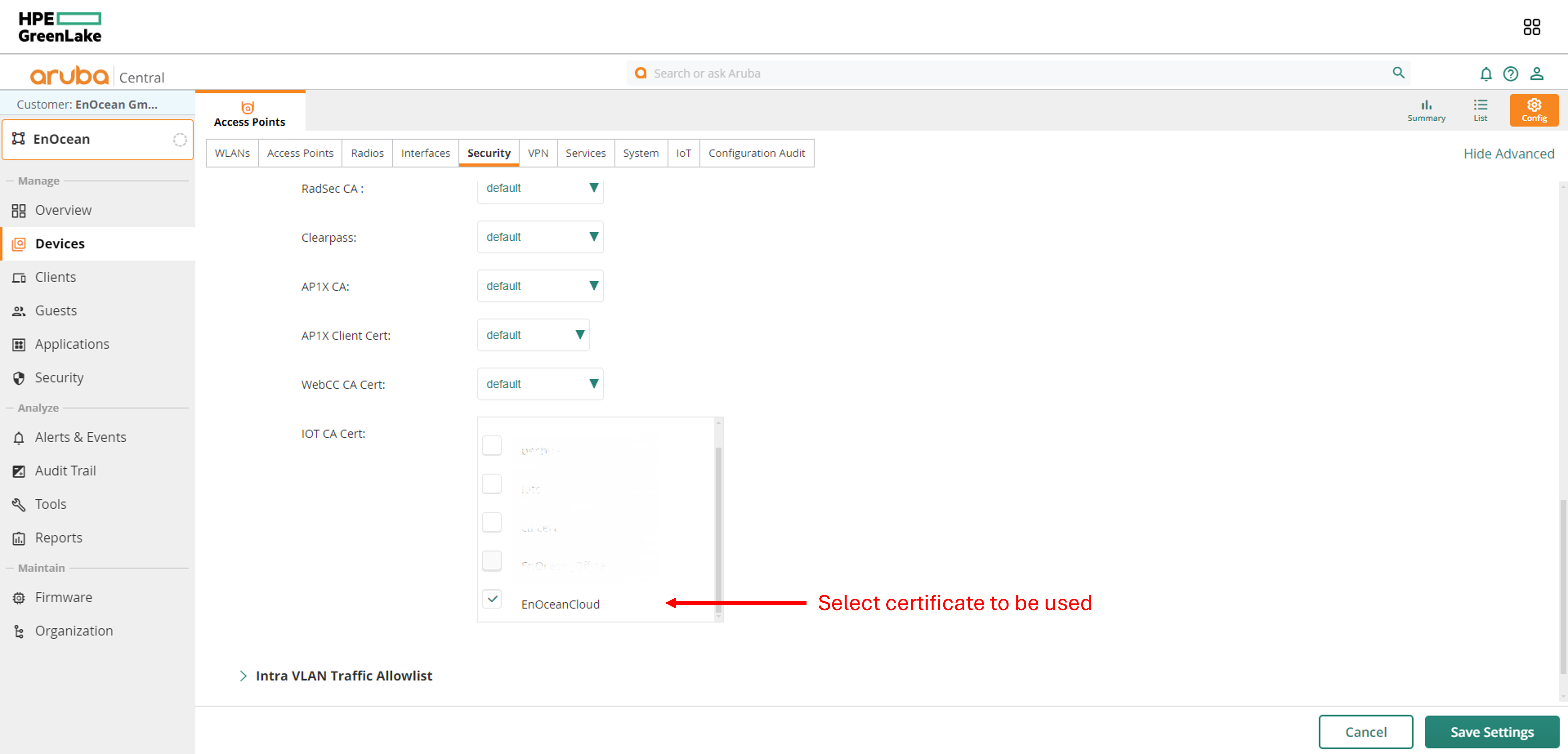
Tick your certificate then click Save Settings.
Step 5: Verify that your Gateway is connected
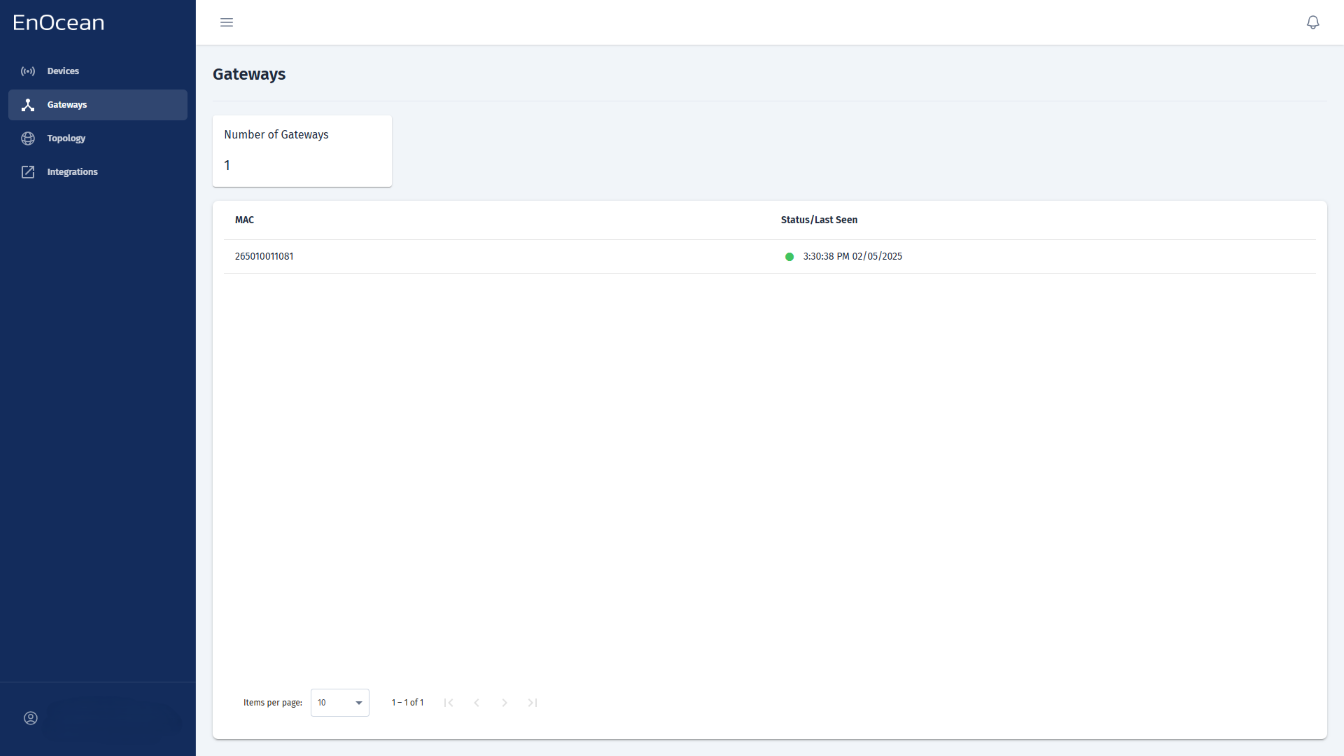
You can check the gateway status directly from the Gateways tab in the EnOcean SmartStudio dashboard:
- Log in to the EnOcean SmartStudio web interface.
- Navigate to the Gateways tab.
-
Locate your gateway in the list and check its connection status.
Alternatively, you can verify the gateway status using the API:
- Login to EnOcean SmartStudio API.
- Use the GET /v0/gateways endpoint to check the connection status.