Configuration using Aruba Instant
Aruba Instant
Aruba Instant is a controllerless Wi-Fi solution designed for easy deployment and management, ideal for small to medium-sized businesses. Each Aruba Instant Access Point (AP) works independently, automatically creating a self-configuring, scalable network without the need for a physical controller. The network can be managed through a local web interface or via Aruba Central for cloud-based control.
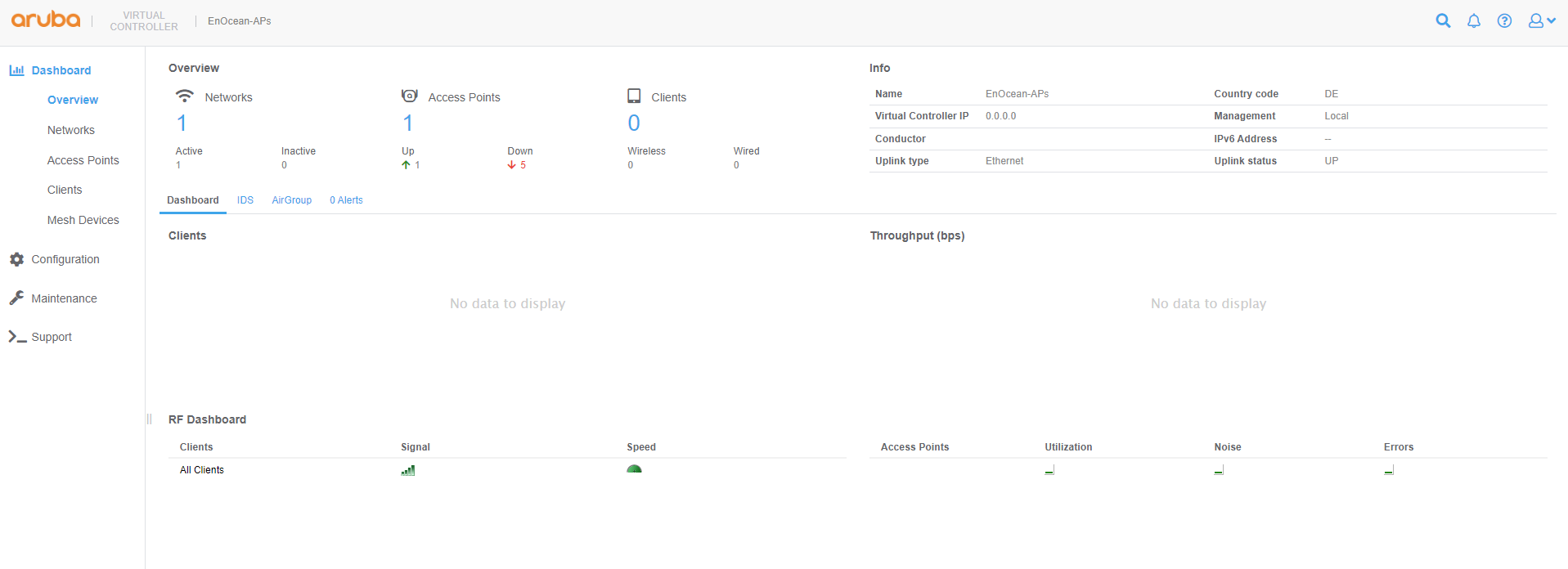
Step 1: Connect to Instant
Log into the router’s web-based management page for Aruba instant.
Step 2: Installing Trusted CA Certificates
Note
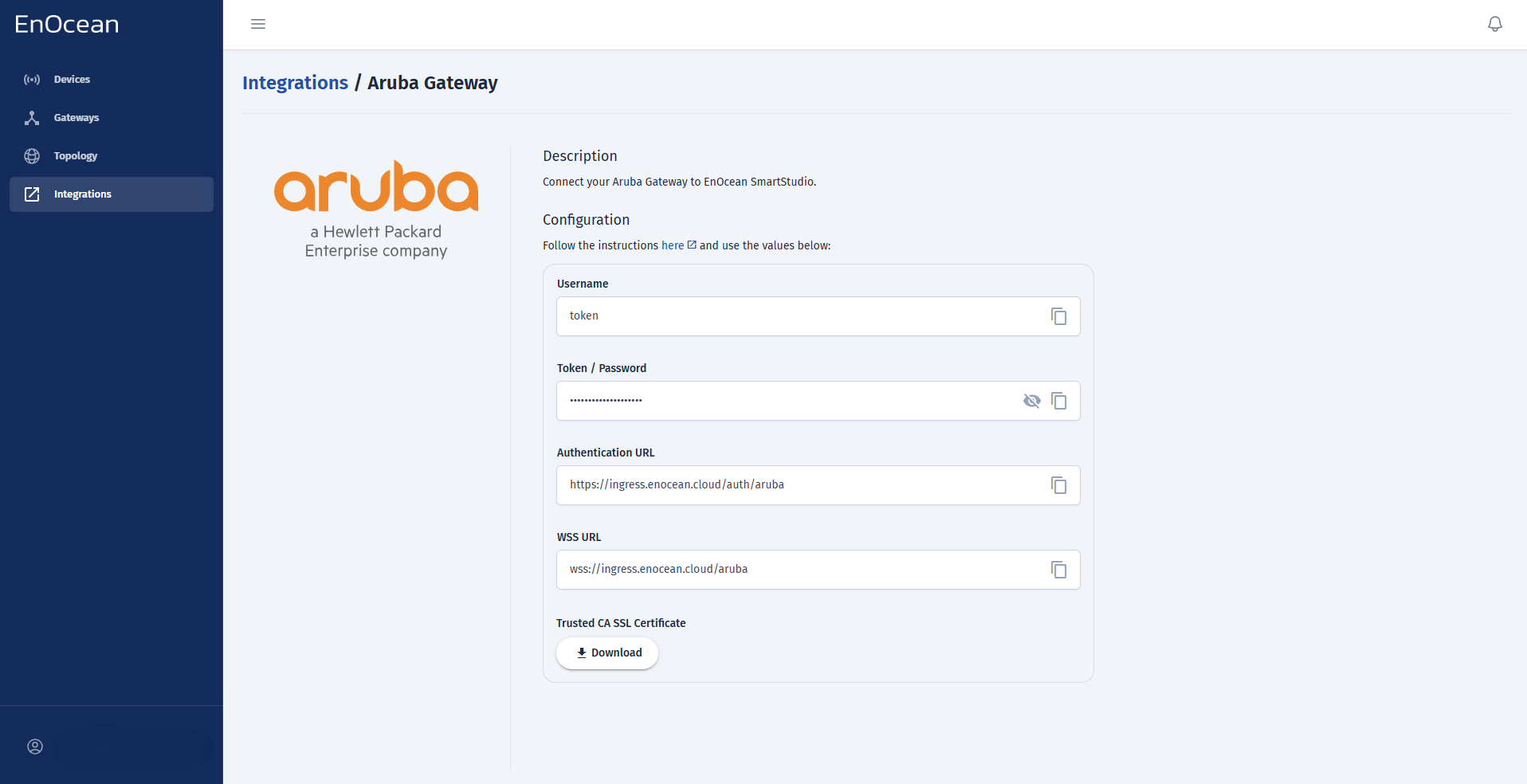
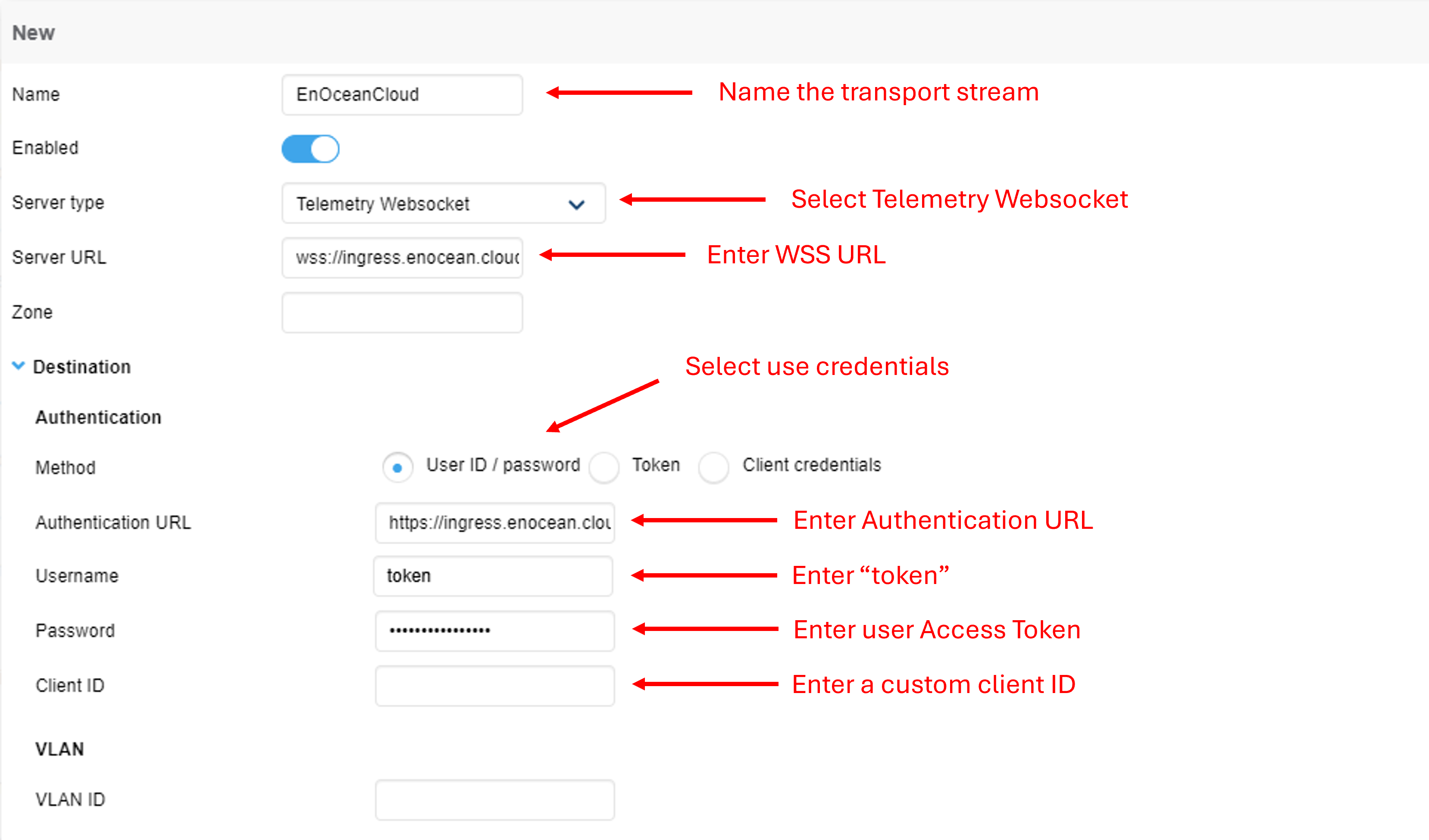
The Username, Password, Authentication URL, WSS URL and the Trusted CA Certificate can be obtained from SmartStudio -> Integrations section -> Aruba Gateway like shown below. It is also recommended to generate a random 10-character string to use as your client ID.
-
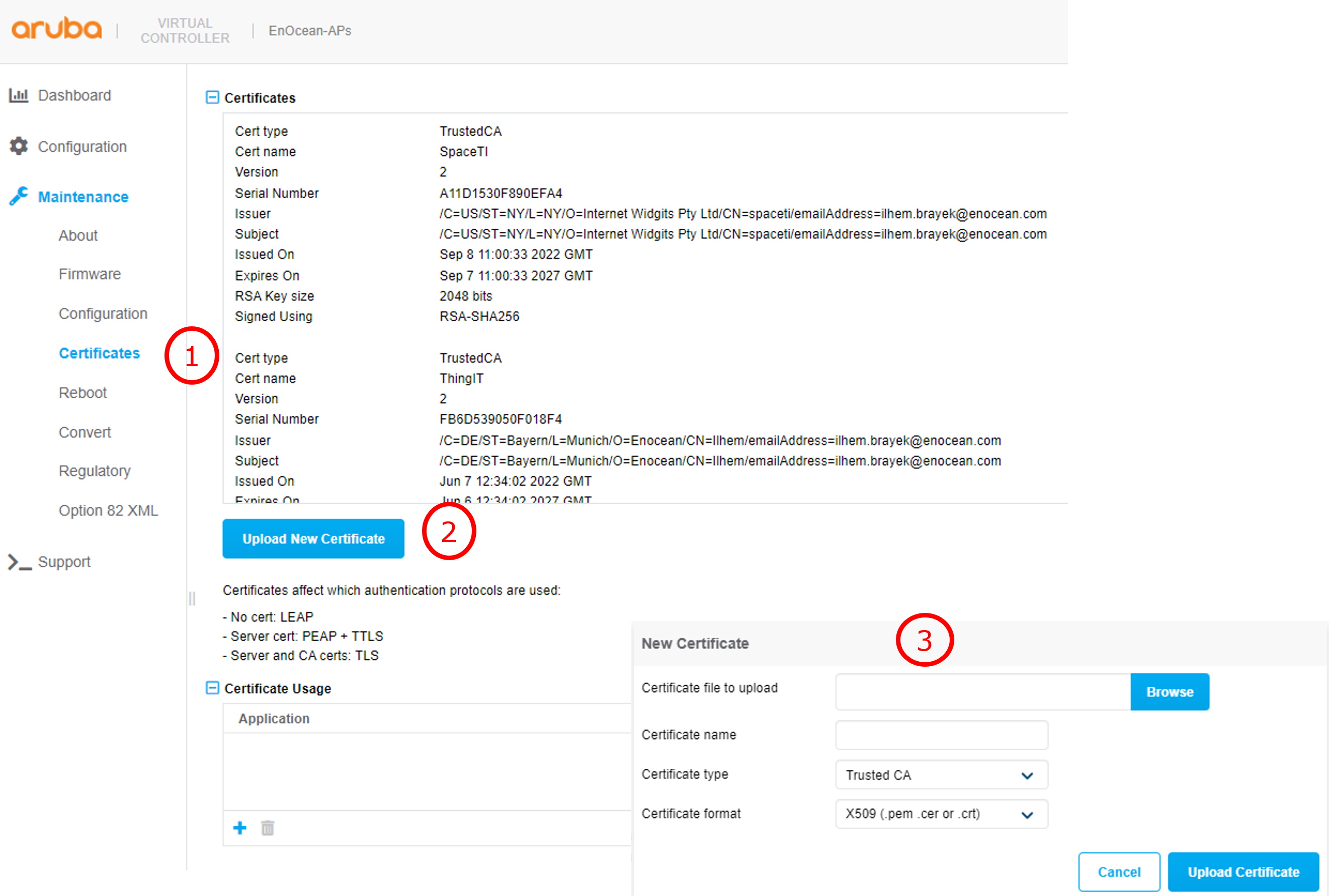
Upload your .pem certificate file From Maintenance -> Certificates -> Upload new certificate.
select Trusted CA as certificate type and x509(.pem .cer or .crt) as Certificate format.
-
Browse to certificate.
-
Click Upload Certificate to save your settings.
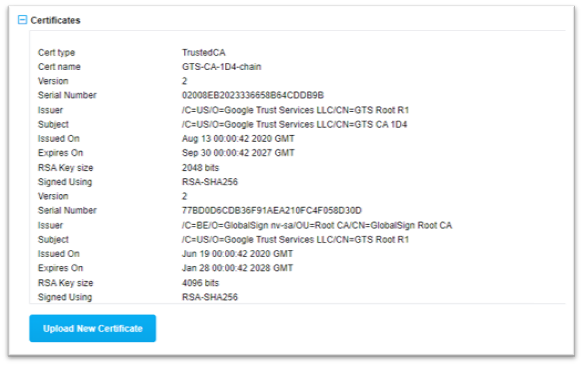
Verify Certificate upload.
Verify the certificate is shown on the certificate list:
- Using the UI:
-
Using the CLI:
```powershell (IAP)# show cert all
Cert type:TrustedCA
Cert name:GTS-CA-1D4-chain
Version       :2
Serial Number :02008EB2023336658B64CDDB9B
Issuer        :/C=US/O=Google Trust Services LLC/CN=GTS Root R1
Subject       :/C=US/O=Google Trust Services LLC/CN=GTS CA 1D4
Issued On     :Aug 13 00:00:42 2020 GMT
Expires On    :Sep 30 00:00:42 2027 GMT
RSA Key size  :2048 bits
Signed Using  :RSA-SHA256

Version       :2
Serial Number :77BD0D6CDB36F91AEA210FC4F058D30D
Issuer        :/C=BE/O=GlobalSign nv-sa/OU=Root CA/CN=GlobalSign Root CA
Subject       :/C=US/O=Google Trust Services LLC/CN=GTS Root R1
Issued On     :Jun 19 00:00:42 2020 GMT
Expires On    :Jan 28 00:00:42 2028 GMT
RSA Key size  :4096 bits
Signed Using  :RSA-SHA256

Version       :2
Serial Number :040000000001154B5AC394
Issuer        :/C=BE/O=GlobalSign nv-sa/OU=Root CA/CN=GlobalSign Root CA
Subject       :/C=BE/O=GlobalSign nv-sa/OU=Root CA/CN=GlobalSign Root CA
Issued On     :Sep  1 12:00:00 1998 GMT
Expires On    :Jan 28 12:00:00 2028 GMT
RSA Key size  :2048 bits
Signed Using  :RSA-SHA1
```
Step 3: IoT transport configuration
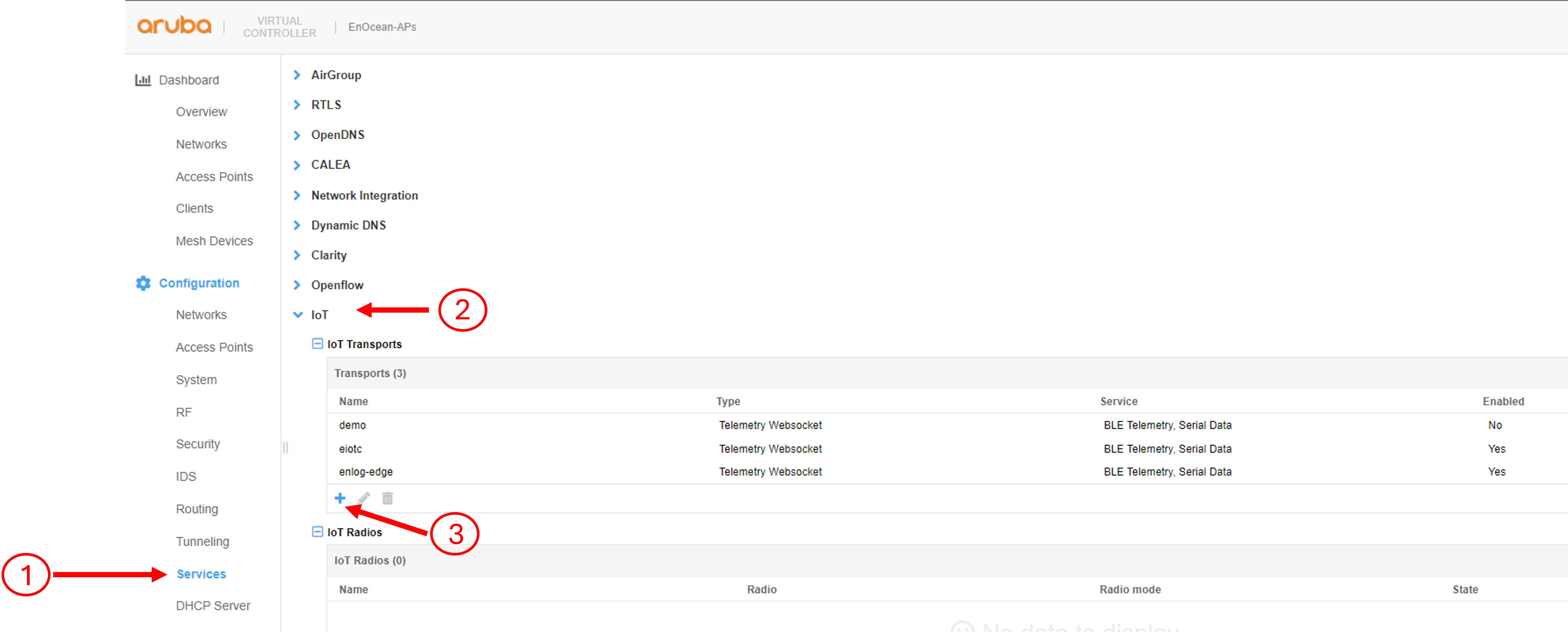
- In Aruba Instant select Configuration -> Services -> IoT -> IoT transports then add a new transport using the + icon:
- Enter the following information in the IoT transport popup:
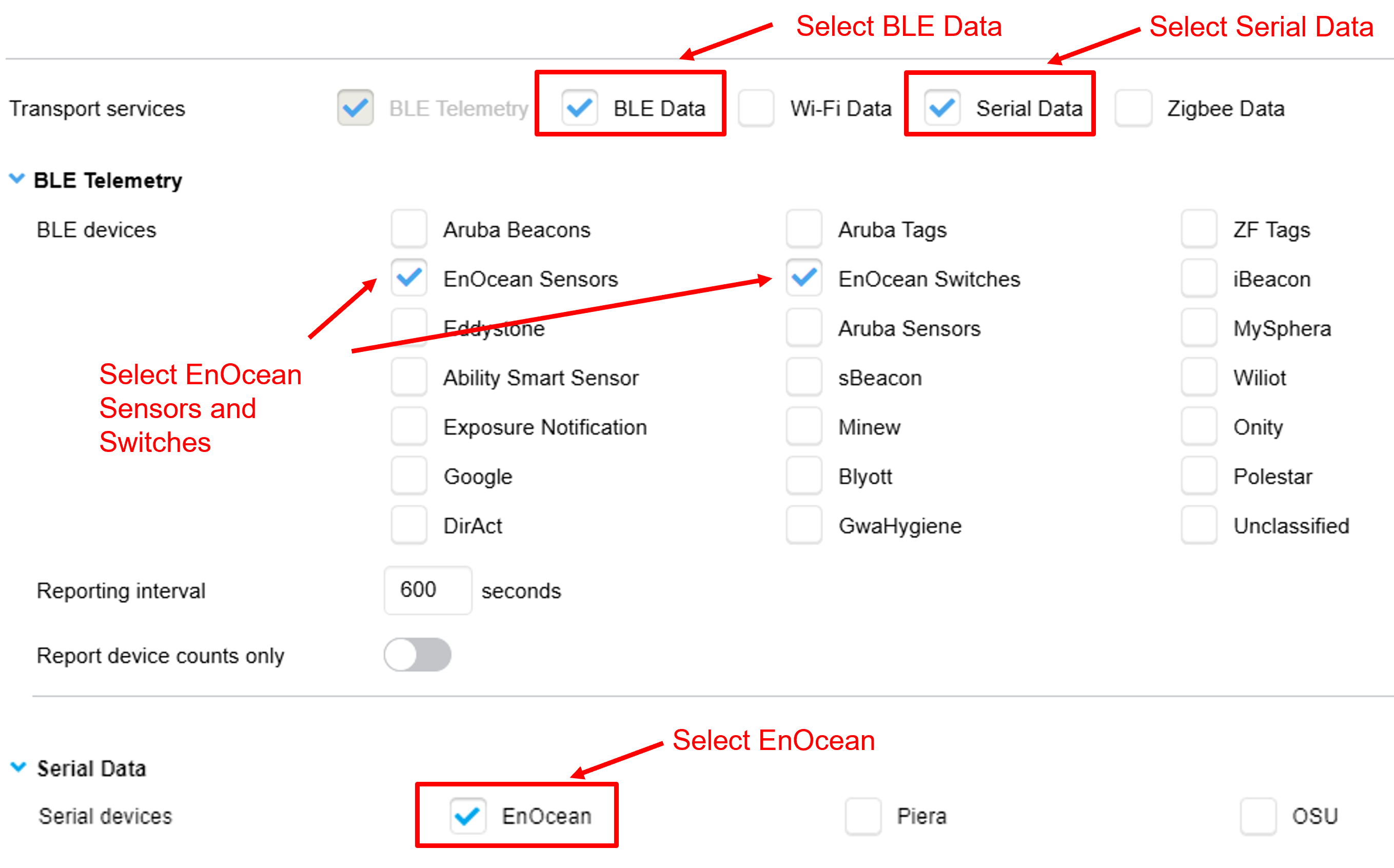
Click OK then Save to save you configuration.
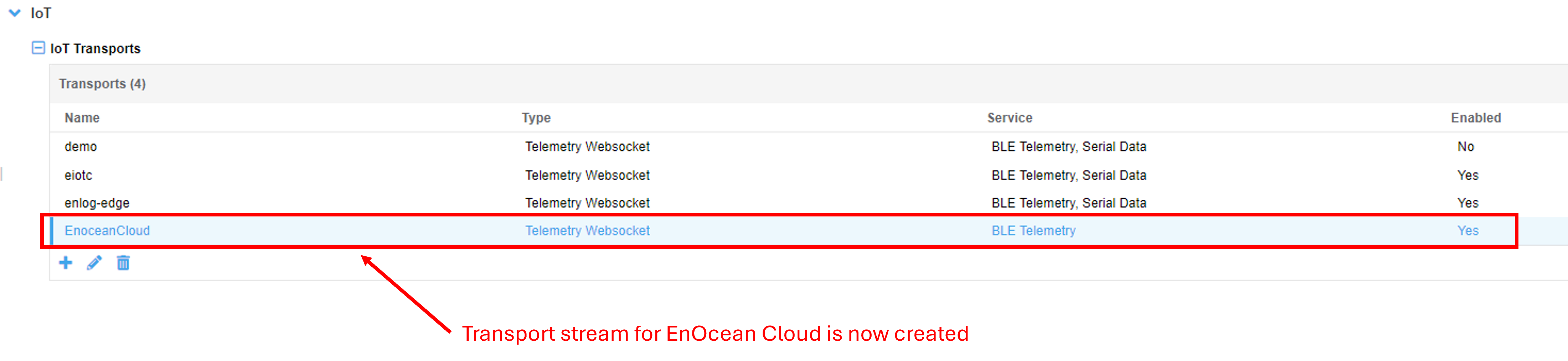
- Check that you transport stream is enabled:
Step 4: Verify that your Gateway is connected
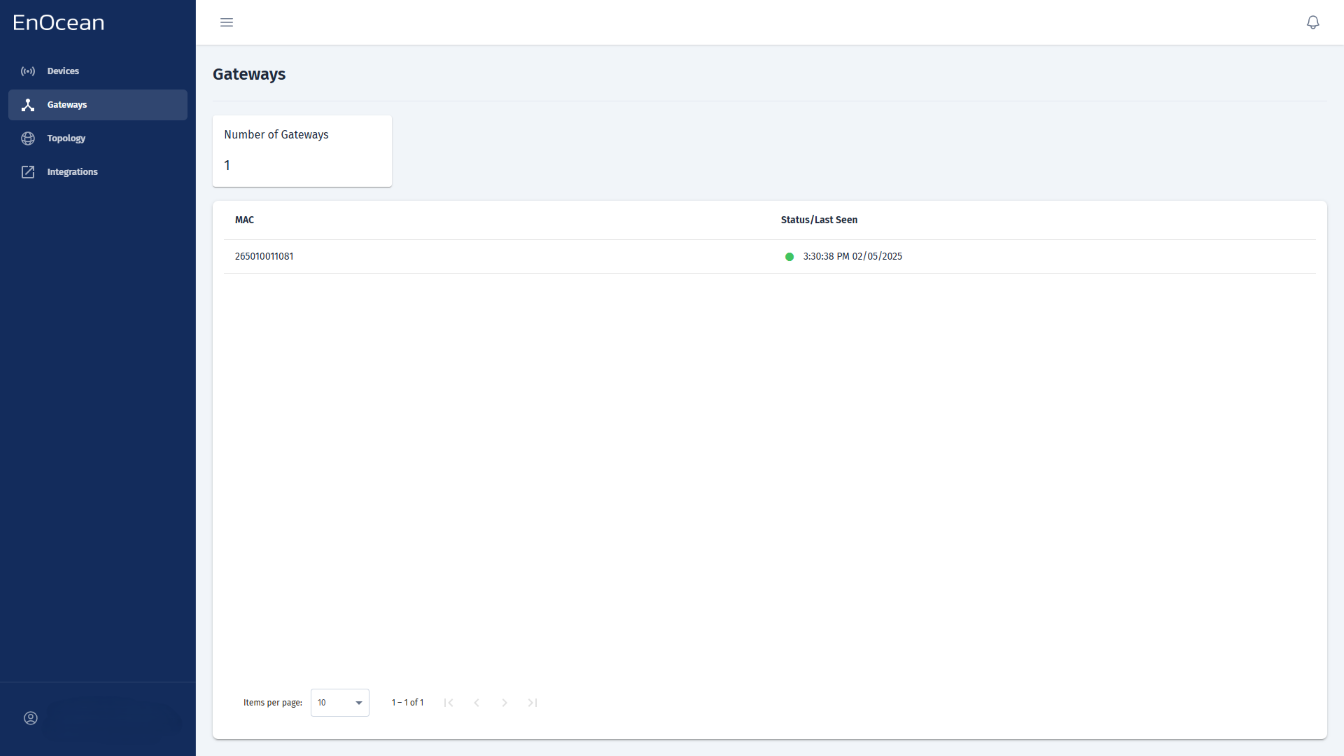
You can check the gateway status directly from the Gateways tab in the EnOcean SmartStudio dashboard:
- Log in to the EnOcean SmartStudio web interface.
- Navigate to the Gateways tab.
-
Locate your gateway in the list and check its connection status.
Alternatively, you can verify the gateway status using the API:
- Login to EnOcean SmartStudio API.
- Use the GET /v0/gateways endpoint to check the connection status.