Commissioning
The following describes the device commissioning flow for adding devices to SmartStudio.
- Navigate to the Devices section and click Add Device.
- From the pop-up screen is it possible to complete the commissioning Using Mobile or by Manual Entry.
Using Mobile
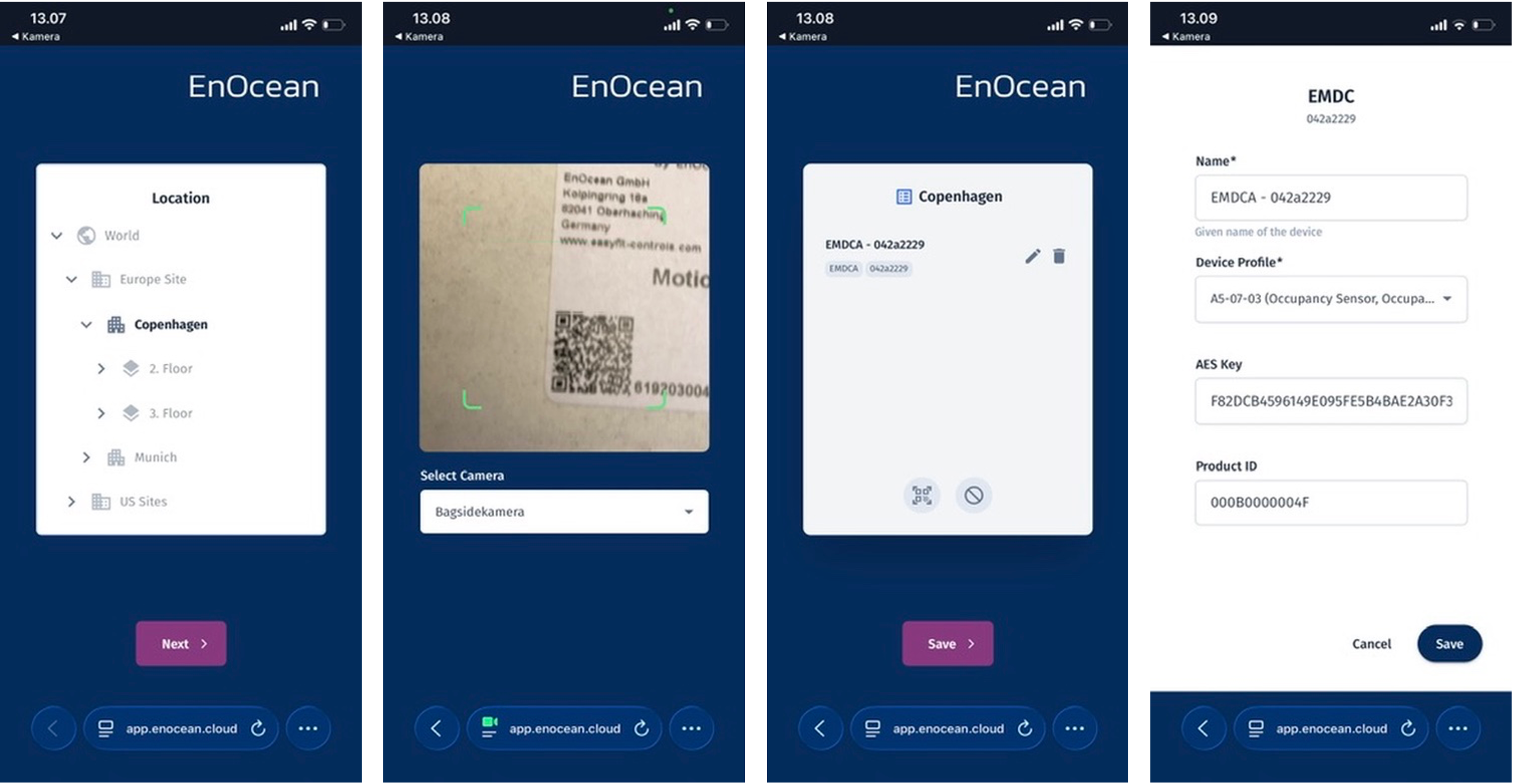
To complete the commissioning using mobile simply scan the on-screen QR code. The following commissioning flow will than open on the phone:
-
Select the desired location and tap Next.
-
Scan the QR code on the device. Note: On some phones, you may need to adjust camera settings.
-
Change the device name if desired.
-
To add additional devices to the same location, tap the QR icon and scan the next device.
-
Tap Save to add the device(s) to SmartStudio.
Manual Entry
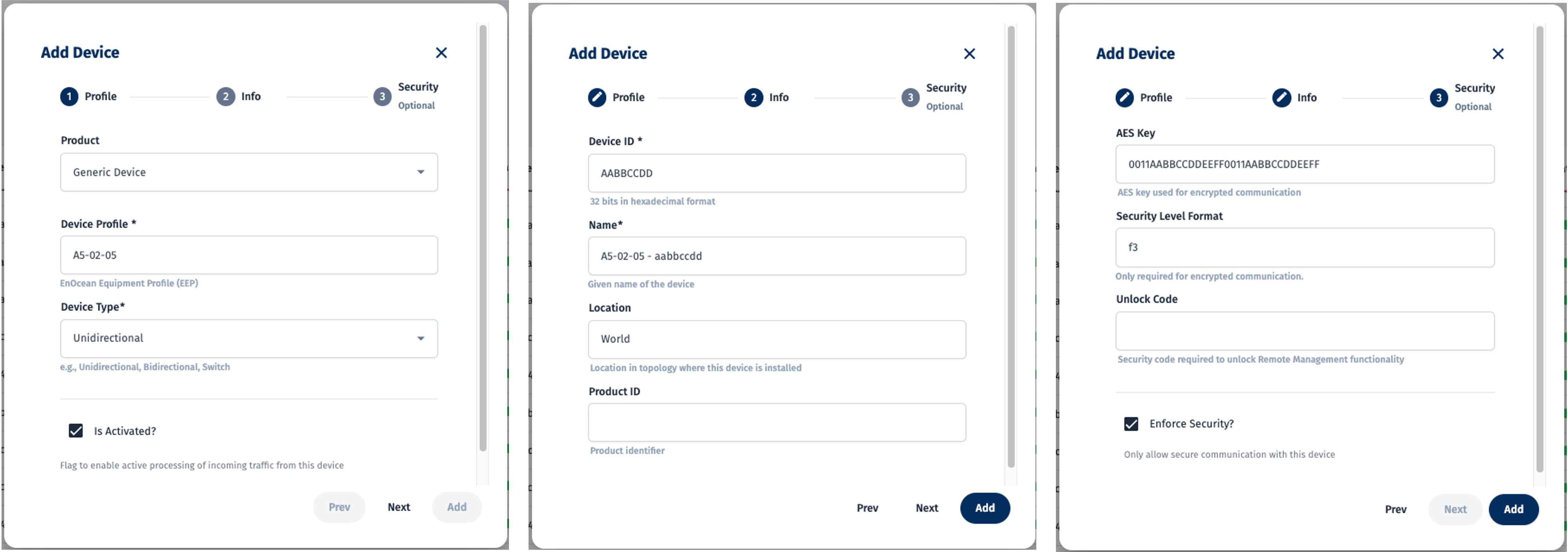
Some devices may not be recognized by the mobile commissioning tool and in this case the device information can be entered manually. To do so, select Manual Entry to start the following commissioning flow:
| Parameter | Description | Options |
|---|---|---|
| Product | Product to be added | Select from the list of known products to pre-populate device information Select Generic Device to manually enter device information |
| Device Profile | EnOcean EEP | Select the product EEP |
| Device Type | Sensor only or bidirectional communication | Unidirectional - Sensor only Bidirectional - Two way communication Switch - EnOcean push button |
| Is Activated | Enable processing of incomming data | - |
| Device ID | Device specific ID | - |
| Name | Device display name | - |
| Location | Device installation location | Select location from Topology |
| Product ID | Device family ID | - |
| AES Key | Device encryption key | - |
| Security Level Format | Device security Level | f3 - 32 bit CMAC (Default) ab - 24 bit CMAC |
| Unlock Code | Device specific Unlock Code used for configuration | - |
| Enforce Security | Only allow encrypted telegrams will be processed | - |